 HoldMyTwist
Create an editable flowchart from text with draw.io
Paste a tiny Mermaid example to free draw.io, edit a shape, save as editable original and PNG. With screenshots, file check.
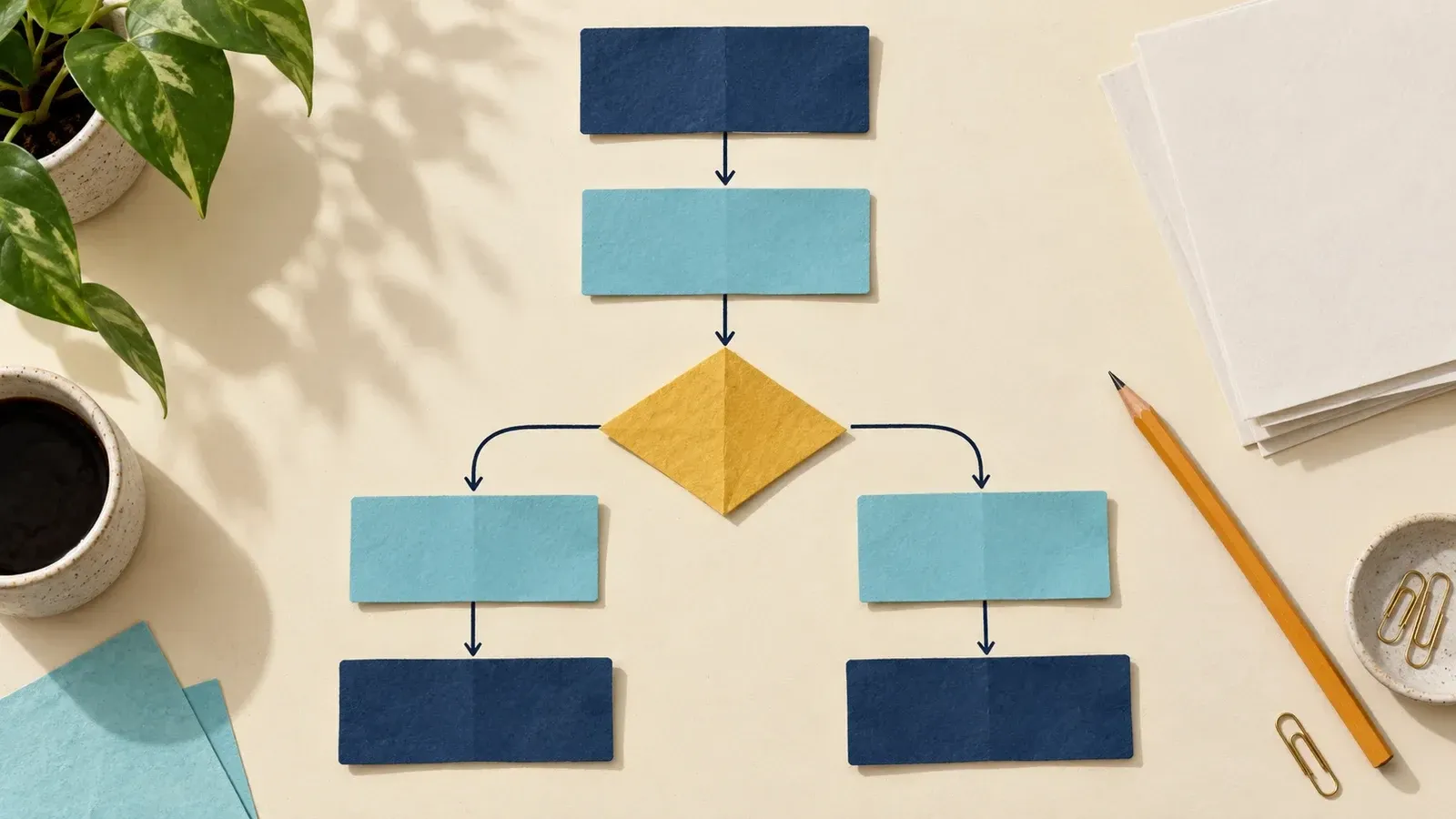
The reader's working from a tiny example of a request handling system in Mermaid (using the free draw.io browser editor). They paste in this example to get a flowchart. Then they make a change to a shape and save the editable version. No account is needed for this example.
1. Start a blank diagram
- Start at the draw.io editor (opens in a new tab).
- Select Decide Later when it asks where to save the file.
- Click File > New to get to the new diagram option.
- Set the name of the diagram to request-flowchart.drawio. Template: choose Blank Diagram. Click Create to open that blank diagram.
- If it opens in a new tab, that new tab is where you continue.
2. Paste the flowchart text
Mermaid uses text to express diagrams. You can copy this fake example without AI.
If you are using draw.io, you would click on Arrange > Insert > Mermaid. Click the copy button below the example code. Paste it into the mermaid dialog, where the sample text is and paste the entire example. When you have "Diagram" selected, if you click Insert, you get 5 editable shapes, branches of Yes and No.
flowchart TD
request["Receive request"]:::step --> details{"Details complete?"}:::step
details -->|Yes| prepare["Prepare reply"]:::step
details -->|No| ask["Ask for missing details"]:::step
ask --> details
prepare --> send["Send reply"]:::step
classDef step fill:#ecf0f1,color:#2c3e50,stroke:#2c3e50
3. Edit a shape and check the paths
- The user double-clicks a shape named Prepare reply.
- They rename it to Draft reply.
- Then they click somewhere on the canvas to stop editing.
So if we go to the Yes part of the Details complete? we will go to Draft reply, and then to Send reply. But if you go the No part, we will go to Ask for missing details, and then back to Details complete?.
The "No" branch point at the shape "Ask for missing details" and then back to the decision "Details complete?".
The "Yes" branch point at renamed shape "Draft reply" and then to "Send reply".
Watch out
If you're using diagram and embed mermaid, you can edit each shape. use .drawio file as your original. If you're using png, it is editable in draw.io only if there's diagram data inside. (don't forget to check export option, before using png)
4. Save the original and a PNG
- To download editable original, then you need to go to File > Save as.
- Make sure file type is XML File (.drawio).
- Under Where: Download. Click OK.
- For browser downloads, look for request-flowchart.drawio.
- And if you later edit it, save the file, then look for new downloaded file again.
You could still get Unsaved changes in the editor. But the downloaded one should be the one to keep.
- File->Export as->PNG
- In Size choose Diagram
- Choose Include a copy of my diagram
- Click on Export. Choose Download. Click on OK
Don't forget to save original .drawio file
5. Check that the PNG is editable
Use a different Blank Diagram. To create a new blank diagram, go to File > New. Use File > Import from > Device to import your PNG that you've downloaded into your check diagram. Double click on Draft reply in your check diagram and manually replace the name to Review reply. Shapes are independent. Original diagram still the same.
If a step fails
When Mermaid reports syntax error paste again the whole example and verify quotes, brackets and arrows.
If when you inserted you only got one image (and not editable shapes), insert again selecting Diagram.
If you exported the PNG and you get flat image when you import, export again the diagram selecting "Include a copy of my diagram". Download the saved file. This will be used to check editability.
PDF layout and printing
If you need pdf then (there's a guide for layout options in draw.io's pdf export guide (opens in a new tab)) you can go in File > Export as > PDF then go to Advanced. You can use either Crop where you will have a page size that will be relative to your diagram, or you can use Fit to 1 sheet across and 1 sheet down to scale it down to fit on one sheet. Check your saved pdf file to make sure you have all of your arrows and can read your labels.
When you export a PDF then the diagram is sent to the provider's PDF generator.
If you want to generate a PDF locally then go File > Print and then select the PDF option from your browser/OS. print guide (opens in a new tab) (how to for Chrome & MacOS).
You should keep your original .drawio file so you can edit it later.
Sources: draw.io Mermaid options (opens in a new tab); save formats (opens in a new tab); PNG export (opens in a new tab). Screenshots show the fictional example in the browser editor.
Share this post
From holdmytwist.com/blog/editable-flowchart-from-text-drawio/
Related posts
Fix JSON errors with JSONLint

Find a trailing comma. Deal with JSON. Understand what a valid result is and what it's not. Short example and real screenshots. Properly handle JSON.
Gmail's third-party Send as ends in January 2027

Gmail will disable 3rd party Send as in January 2027. Does your domain address have a mailbox? Select a supported method for sending. Test replying.
Chrome says a connection is not secure: what to do

Check Chrome connection warning. Check trusted address. Check secure connections setting. Google claims that public http warnings are now enabled by default. Make sure your browser protection is enabled while checking everything.