 HoldMyTwist
Set up folders and labels in Proton Mail Free
The Proton Mail Free exercise actually sets up a folder and a separate label. It does talk about the 3 of each, and the difference between moving an email and applying a tag to it.
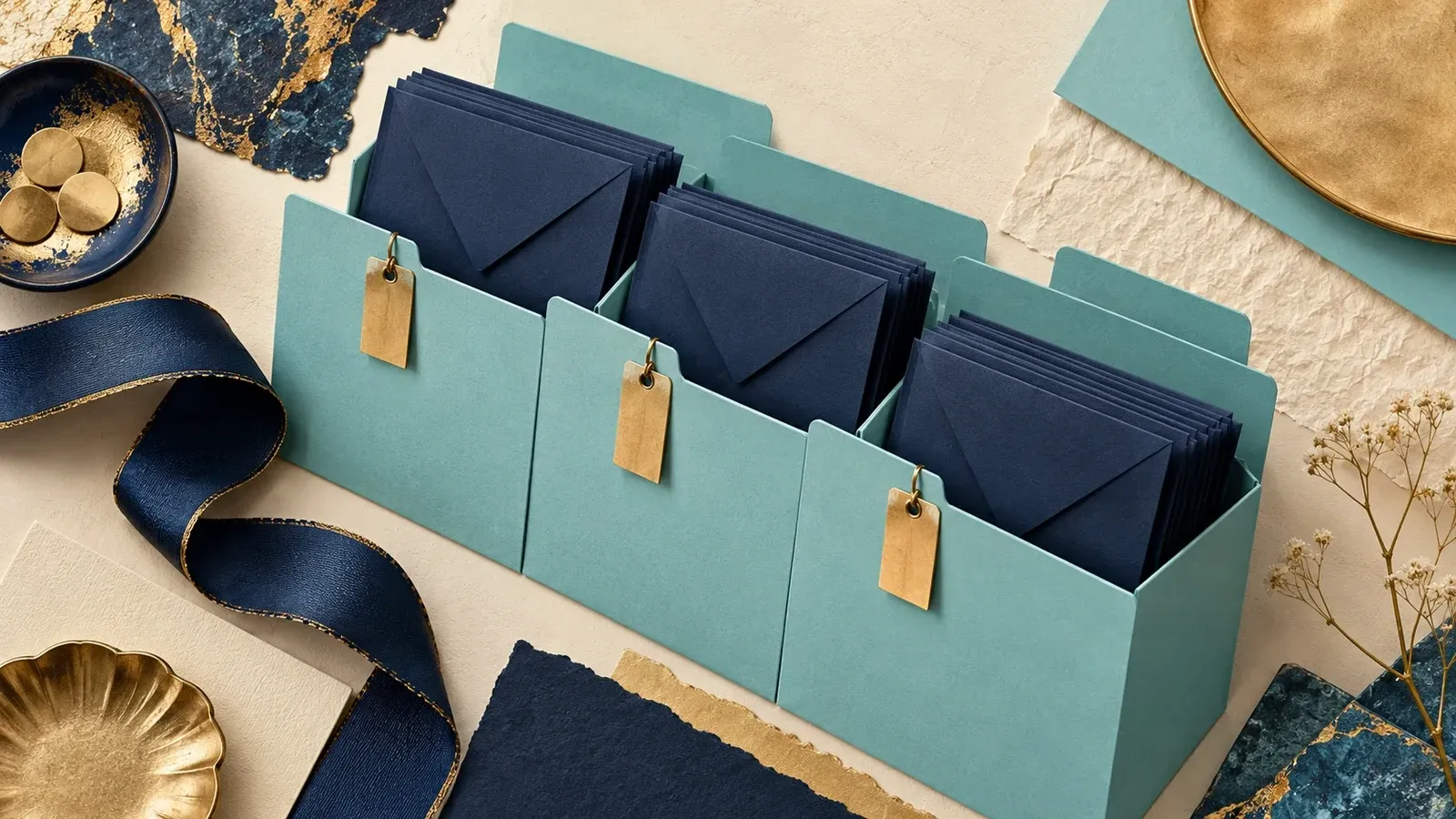
Folders provide one place to reside. Labels provide a tag without moving. Proton Free supports up to 3 custom folders & 3 labels (opens in a new tab).
In this case, you make a practice folder and label. You will use your own mail with these controls as described by Proton:
Before you start
You need to have a proton account to use the mail web app. Create Proton Mail Free account (opens in a new tab). Or, log in with your existing account. You need a practice folder and label in your space limit.
1. Create one folder
- Go to Proton Mail (opens in a new tab)
- Click on the + next to Folders. This is a Create a new folder button.
- Type Practice receipts. If you want to create a top-level folder, leave it at No parent folder.
- Check your notification preference and then click Save.
2. Create a label
- Press + near Labels
- Type Practice follow-up
- Select a color
- Save
Expand Folders and Labels
Should see both of them
Quick takeaway
If it belongs in another folder, move it. If it needs a tag (e.g. follow-up), apply a label. Label won't move a message out of Inbox. You can apply multiple labels to a message.
3. Apply the system to a message
As per the Proton instructions; Pick a message. Click on Move to. Pick a folder. Click Apply.
The message you picked is now gone from its original folder. It now shows up in the folder you chose. If you want to add a label; Use the label control instead. Pick your label. Click Apply.
So pick some harmless message. Once you move a message, go back to the destination folder to see if it shows up. Once you label a message, go back to the label you selected to see if the tag is on it.
No auto sender rules. Learn the manual steps first.
If you cannot create another
Count your current number of folders & labels. Use an existing name (don't upgrade for this example). Name management. Settings -> All settings -> Folders and labels.
For a taste of the folder + label game: Proton Mail Free is a great place to start (opens in a new tab) with 1 harmless practice message. (use your existing account if you have one, you don't need to upgrade for this exercise).
source: Folders, labels and Free limits (opens in a new tab)
Share this post
From holdmytwist.com/blog/set-up-mail-folders-labels/
Related posts
Restore a deleted file from Proton Drive Trash
How to recover from Proton Drive Trash, check the original folder and content, and avoid confusion with version history. Don't mix up delete and version history.
Restore a deleted item in Proton Pass Free
Restore an item in Proton Pass Trash, view the restored information, and understand why editing isn't reversed when restoring a deleted item.
Is Proton VPN Free enough? Check these limits
Go to protonvpn.com free country selection, device count, streaming support. Click free signup, and go past the paid offer page.