 HoldMyTwist
How to write AI UI prompts with Google Stitch
Write a clear UI prompt, inspect the generated screen and request a focused revision in Google Stitch. Includes original screenshots and limits to check.
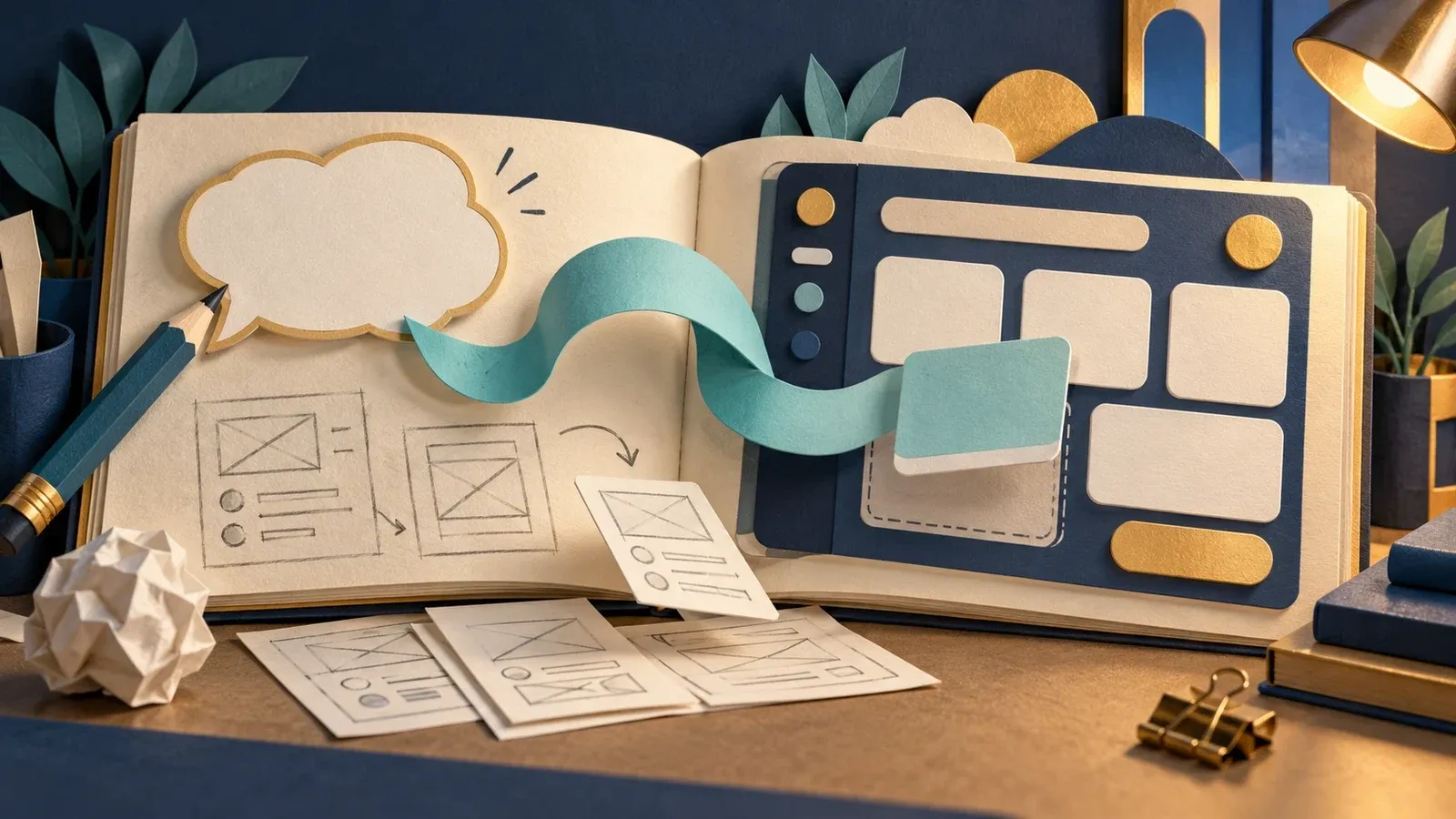
An AI-generated screen can look finished while it invents details or clips text. This guide uses Google Stitch and current prompting guidance from Figma and v0 to create one screen, correct it and check the result.
UI means user interface, the screen's buttons, text and layout. The screenshots show ClearDay, a fictional home-task app with invented data.
1. Choose one screen
- Open Google Stitch (opens in a new tab), sign in and review any terms before continuing.
- Choose Web. Decide what the person should do on this screen, such as finding today's chores.
Stitch's public FAQ currently says it is free with daily credits that reset at midnight UTC. Check your allowance before generating.
2. Paste and generate a clear brief
- Click the prompt box.
- Adapt this example to your screen and audience. Keep the first version small enough to inspect.
Create one web dashboard for ClearDay, a fictional home-task app for adults who want to see today's chores and mark them complete. Make today's task list the main content, with navigation for Today and Upcoming. Use the invented tasks "Water plants", "Put out recycling" and "Wipe kitchen counter", clearly labelled Demo data. Use a warm white background, dark navy text and a teal main action. Use two columns on desktop and one on mobile. This is a UI concept with no sign-in, database or payments.
Click the upward arrow, labelled Generate designs, and wait for the response to finish. Compare the screen with your brief. Our tasks appeared, but Stitch also invented "Sarah" and a calendar date.
Watch out
Inspect the whole generated screen after every revision, including invented names, dates and clipped labels. Try the main action and check the phone layout. A screen that looks finished still needs those checks before you use it.
3. Request a focused correction
- Click the generated screen on the canvas.
- In What would you like to change or create?, enter the correction below and click the upward arrow.
Correct the invented header content on the selected Today screen. Replace "Good morning, Sarah" with "Today at home". Remove "Wednesday, October 25" and keep only the task count under the heading. Keep the task list, Demo data labels, colours and layout unchanged. Do not add a person's name or a calendar date.
The heading changed to "Today at home" and its date disappeared. Invented dates remained in the Upcoming panel, so check the whole screen after a revision.
4. Try the main action
- Click the triangular Play icon at the top right to create or open the prototype.
- Try the action you requested. Marking Water plants complete changed our progress from 0/3 to 1/3.
5. Check the phone layout
- Return to the canvas using the project-name button at the top left.
- Select the screen and open the eye-shaped Preview menu.
- Choose Mobile 390x884. Use the zoom menu's Zoom to Selection to inspect it.
- Read every task name. Our long labels were cut off. Ask for task names to wrap onto another line, then check again.
Before using a working web preview, also check keyboard focus and labels with W3C's Easy Checks (opens in a new tab). These checks do not establish full accessibility.
If the preview differs from the canvas
Our prototype initially showed the old header after the canvas edit. Returning to the canvas and reopening Play later showed the correction. Compare both views before using them. A July 2026 study (opens in a new tab) found gaps between AI tools' design explanations and their interfaces, so check the output yourself.
Sources: Stitch FAQ (opens in a new tab), Figma prompting guidance (opens in a new tab), v0 prompting guidance (opens in a new tab), September 2026 design experiment (opens in a new tab), Design Theater (opens in a new tab) and W3C Easy Checks (opens in a new tab).
Share this guide
From holdmytwist.com/guides/ai-ui-prompts-google-stitch/
Related guides
Free AI chatbots: what to switch off before you start
ChatGPT, Gemini, Copilot and Claude all have free plans. Check their account requirements and the settings that allow your chats to be used for AI training.
10 everyday AI prompts you can copy and check
Copy ten original prompts for emails, checklists, spreadsheet help and more. Each includes a specific check before you use the answer.
In this guide

10 AI study prompts that keep you doing the work
Use ten original prompts for hints, flashcards, practice questions and checking your working. Includes source checks and an independent final review.
In this guide