 HoldMyTwist
Make a chart in Lumo and check it against your data
Create a Lumo bar chart from fictional CSV rows, check repeated categories and totals, add readable labels, then verify a one-row correction.
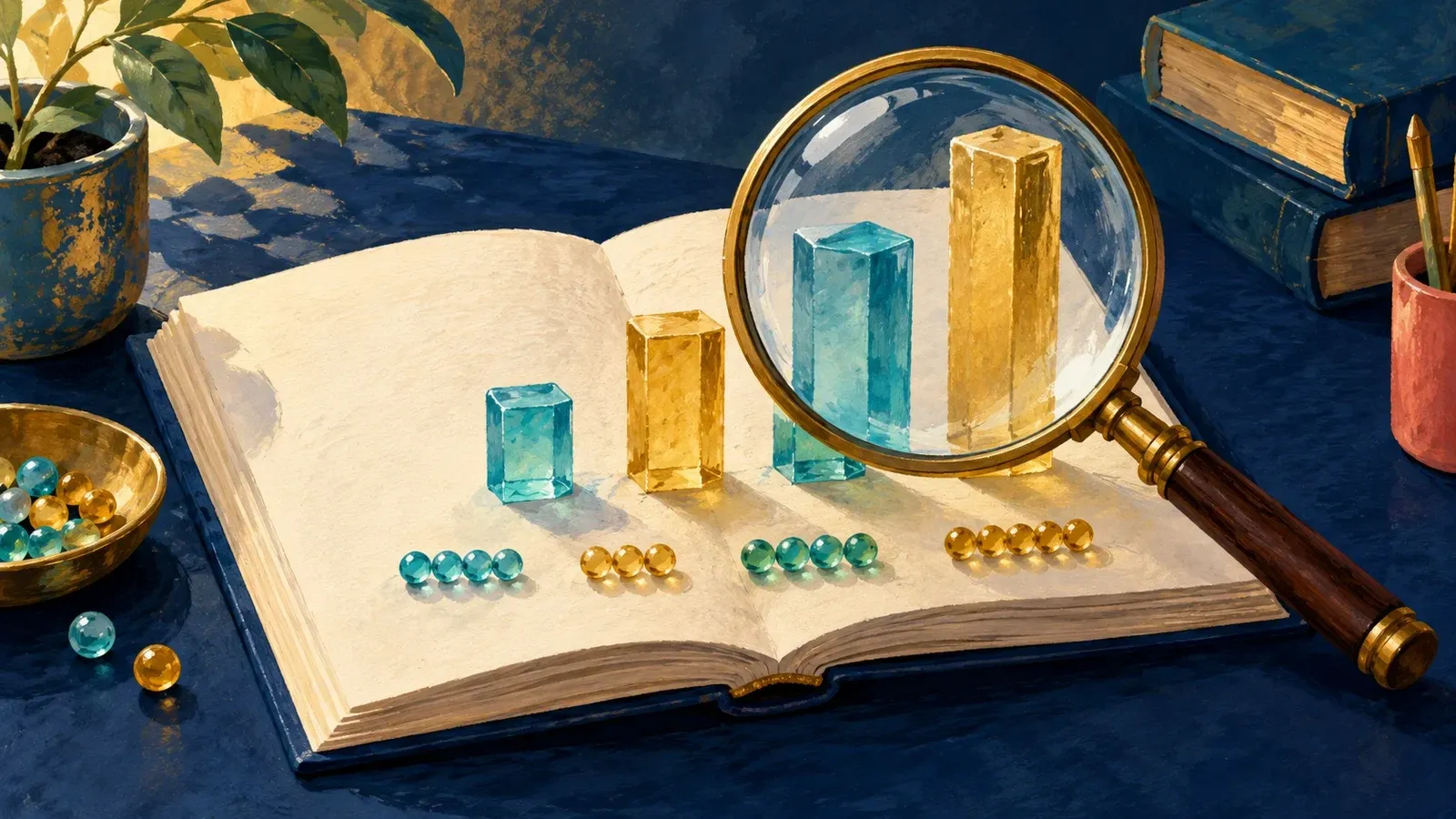
A chart can look convincing while grouping the rows incorrectly or hiding the numbers you need to check. Proton's Lumo chart feature (opens in a new tab) lets you request a visual in chat; this walkthrough shows how to compare it with your source data before using it.
Before you start
Use your own Proton account in the Lumo web app. Lumo Free supported this small exercise, though usage is limited. New users can explore Lumo through our affiliate link (opens in a new tab) and choose the Free option; existing users should sign in (opens in a new tab). You will make and check a four-category bar chart using fictional data. See the current plan limits (opens in a new tab).
We used an existing Free account for the pasted-data exercise, the label correction and the one-row change below. The screenshots show those real results. This small example does not establish an accuracy rate or prove that larger spreadsheets will work.
If your data is already in a spreadsheet, its built-in chart tool may be the easier choice. Google Sheets (opens in a new tab) lets you select cells and choose Insert > Chart; LibreOffice Calc (opens in a new tab) also creates charts. You can keep the data and chart together without asking an AI to interpret the rows.
1. Keep the source and work out the answer
- Keep a separate copy of the input in a plain-text note or spreadsheet. Use the fictional rows in the next step first. For your own task, use only data you have permission to share with the service.
- Check the totals yourself with a calculator or spreadsheet. Here, each channel appears twice. Both rows must contribute to its single bar.
- Guide: 12 + 8 = 20
- Video: 9 + 6 = 15
- Newsletter: 5 + 7 = 12
- Shop: 3 + 4 = 7
- Grand total: 20 + 15 + 12 + 7 = 54
These are download counts, not people, purchases or revenue. Keep that unit in the chart title or axis. Decide whether repeated labels should be added before asking for a chart; separate events with the same label may need a different rule in your real data.
2. Ask for the grouping and chart explicitly
- In Lumo, choose New chat.
- Paste the entire prompt below into Ask anything, including the column names and all eight data rows. CSV means comma-separated values: the comma separates the channel name from its count.
- Open Tools and turn Web search off; all the required numbers are in the input. Then use the send button, labelled Start generating, and wait for the response to finish.
Use only this fictional CSV. Add Downloads for each Channel. Show a totals table and grand total, then create a horizontal bar chart titled "Fictional downloads by channel". Show each total as a data label. Start the numeric axis at zero and use whole numbers. Repeated channel names are rows to add, not separate bars. Do not use web search or add estimates.
Channel,Downloads
Guide,12
Guide,8
Video,9
Video,6
Newsletter,5
Newsletter,7
Shop,3
Shop,4
The expected result is a totals table and a chart with four bars. Lumo's layout and wording can vary; the checks below matter more than matching our screen exactly.
3. Check the table, then the visible chart
Compare every channel total with your separate calculation. Check the grand total too. Our first table matched 20, 15, 12, 7 and 54.
- Count the bars. You need four categories, with no missing or extra channel. Match each bar's label to its value.
- Inspect the horizontal Downloads axis. Its baseline should be zero for this comparison, and the values should be counts rather than percentages.
- Look for the numbers printed beside the bars. Our first chart omitted these despite the prompt. Hover-only values are awkward once you put an image in a document. If labels are missing, send this follow-up.
Keep the same four totals and grand total. The chart needs visible numeric labels, not only hover values. Add each total at the end of its bar, use one bar color, remove the redundant color legend, and use a compact chart height so all four bars and the numeric axis are easy to see. Do not change any data.
Our follow-up produced visible labels and preserved the four totals. Check them again after any style change. A request to leave the data unchanged is an instruction, not proof that it stayed unchanged.
Watch out
Check the numbers against your own source after every revision. A neat chart and a matching AI-written table can repeat the same mistake. In this exercise, the independent calculations are what let you accept or reject the result.
4. Change one row and check the new result
- In the same chat, send the following correction. It identifies one row and leaves the other Guide row alone.
Change only the first data row, Guide,12, to Guide,10. Keep Guide,8 and all six other rows unchanged. Recalculate a totals table and grand total from the revised eight rows, then create a new horizontal bar chart with visible end labels, one bar color and a numeric axis starting at zero. Use a compact height. Do not reuse the old totals.
- Work out the new answer separately: Guide becomes 18 from 10 + 8. Video stays 15, Newsletter 12 and Shop 7. The grand total becomes 52.
- Inspect the new table, bar labels and subtitle. Our revised response matched those values. The earlier charts remained in the conversation, so choose the version you actually checked.
This correct response does not guarantee future answers. For your own data, save the revised input alongside the chart so another reader can check the calculation.
5. Check any file you save
Proton's download instructions (opens in a new tab) say to select Download or the downward-arrow icon on the visual, then save the file to your device.
- Find the checked version in the conversation and use its download icon.
- Open the saved file locally before putting it in a document. Read all four category labels and values, the unit, the zero baseline and the subtitle. For the revised version, look for Guide 18 and total 52.
- Keep the source rows and calculation with it. If the file is missing, clipped or unreadable, leave it out of your document until you have a usable copy.
We saw the download control, but our browser session did not give us a file we could open. We checked only the charts in the chat. The saving steps above follow Proton's documentation; we have not checked the file format or whether a downloaded copy preserves the full chart.
If the result is wrong or no chart appears
Ask for a horizontal bar chart directly and include the column names. Proton says an explicit chart request can still work when automatic Visualization mode is off. If a Free usage limit stops the exercise, pause or use your spreadsheet's chart tool; you do not need to upgrade to learn the checks.
If the numbers disagree, return to the source rows and grouping rule. Correct the input or make the chart in a spreadsheet. Do not keep accepting new answers until one merely looks plausible. Proton's getting-started guidance (opens in a new tab) also advises verifying answers before using them outside Lumo.
If you want to try these checks in chat, explore Lumo and choose the Free option (opens in a new tab), then use the fictional rows above. Keep using your spreadsheet if its chart tool already covers the job.
Sources: Lumo custom data visualizations (opens in a new tab); Lumo plans (opens in a new tab); Getting started with Lumo (opens in a new tab); Google Sheets charts (opens in a new tab); LibreOffice charts (opens in a new tab).
Share this guide
From holdmytwist.com/guides/check-an-ai-chart/
Related guides

Check an AI statistic against the original data
Trace a fictional AI statistic to Eurostat’s original table. Check the year, population, geography and measure before you use the number.
In this guide
Verify a book quote and find its printed page number
Trace a book quote to its scanned page, check the speaker and edition, and save the right citation details. Follow a free Pride and Prejudice example.
Check an AI citation before you use it
Find an AI-suggested scholarly reference, match it to the publisher, check for updates and read the passage that supports your claim. A free Crossref and PLOS walkthrough.
In this guide