 HoldMyTwist
Make Numeric aggregator: sum quantities by category
Group order quantities into category totals in Make. Use SUM, fix inconsistent names with trim and lower, and check the result on the Free plan.
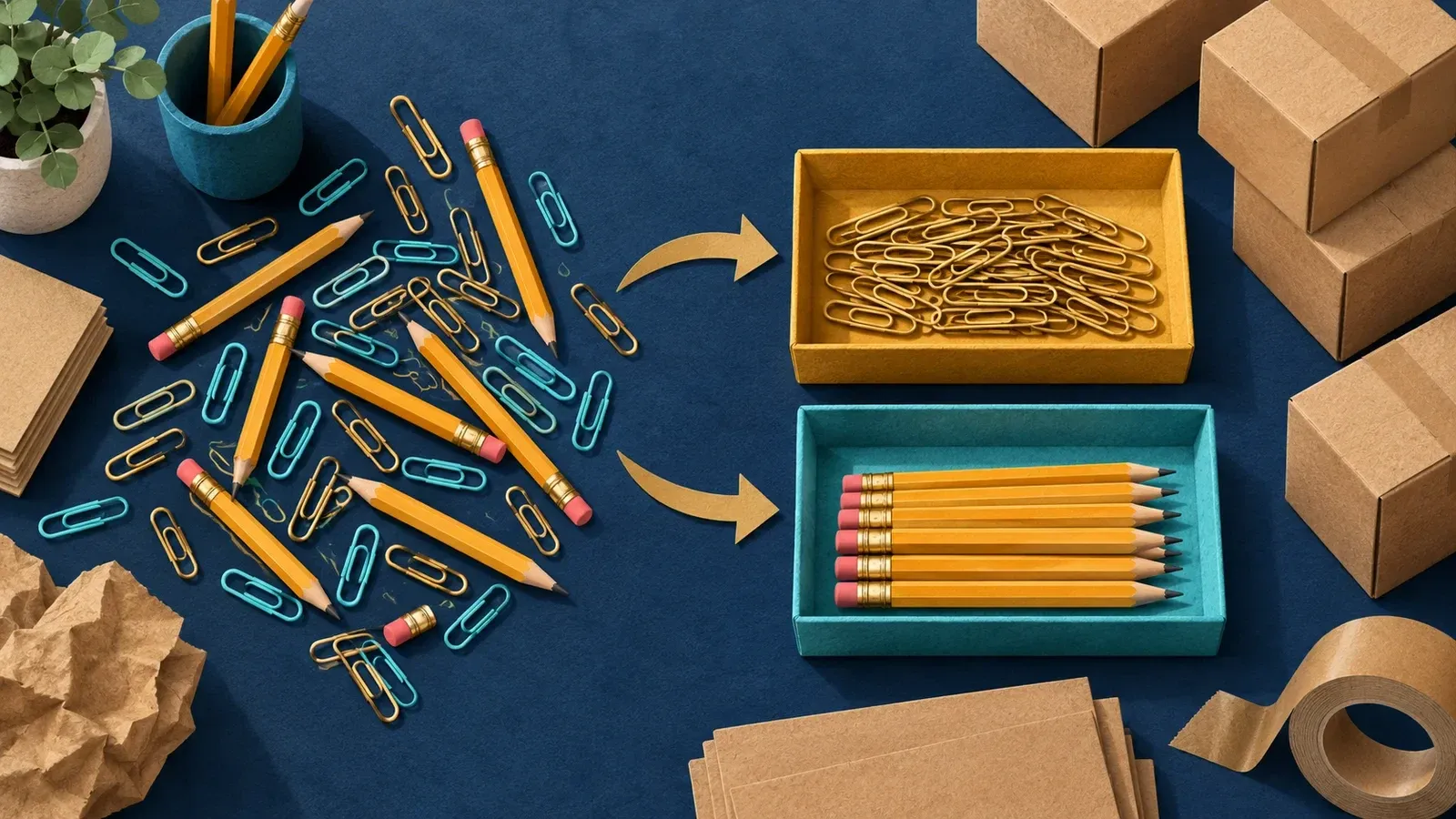
Combine order quantities into one total per category with Make's Numeric aggregator. This example uses fictional records on Make Free, with no app connections.
Before you start
A spreadsheet is simpler for a one-off table. Use this step when the totals belong inside a repeated Make workflow. You need a Make account to follow this tutorial. You can start with Make Free (opens in a new tab) or sign in to your existing account; check the current plan limits (opens in a new tab) before building a larger scenario.
1. Create three practice records
- Click Create scenario, name it Category quantity totals and add JSON > Parse JSON.
- Leave Data structure unset. Paste the example below into JSON string and click Save.
- Click Run once. If Make warns that the output is unused, click Run anyway for this practice. Open the result bubble above JSON.
[ {"category":"Stationery","quantity":2}, {"category":"stationery ","quantity":3}, {"category":"Packaging","quantity":4}]
Expect three output bundles. Here, each bundle is one record passed to the next module. Keep the space after the second category so you can see how it affects the grouping. To read small screenshot controls, select Enlarge image, then Open full-size image.
2. Sum quantities by category
- Click the plus beside JSON and add Tools > Numeric aggregator.
- Set Source Module to JSON - Parse JSON [1] and Aggregate function to SUM.
- Click Value and select the purple quantity item from JSON's mapping panel.
- Turn on Show advanced settings. In Group by, select JSON's category item. Click Save, then Run once and Run anyway if prompted.
- Open the bubble above Tools. The raw labels produce three totals: Stationery = 2, stationery with a trailing space = 3, and Packaging = 4.
Watch out
Group by uses the evaluated category value. Different capitalisation or edge spaces can split one category into separate totals. Clean the grouping value only when those differences should be ignored. The next step combines the two stationery entries.
3. Clean the grouping value
- Open the Numeric aggregator. Select everything in Group by and paste the expression below. It assumes JSON is module 1.
{{lower(trim(1.category))}}
trim removes edge spaces; lower makes the label lowercase. Keep Value mapped to quantity and leave Stop processing after an empty aggregation unticked for this example.
- Click Save, then Run once. Choose Run anyway if the unused-output warning appears.
- Open Tools' result bubble. Check both output bundles: Key: stationery, result: 5 and Key: packaging, result: 4.
4. Save the practice scenario
- Click Save on the bottom toolbar. Choose Save anyway if Make warns that the final output is unused.
- Keep the scenario Inactive. This practice ends at the result inspector and sends nothing elsewhere.
These totals cover the records supplied in this run. They do not accumulate across separate runs. In a larger workflow, check which records the aggregator includes and map its Key and result into the next module.
If the totals look wrong
If quantity or category is missing from the mapping panel, run JSON alone first. If a formula names the wrong module number, replace 1 with your JSON module's number. If categories remain separate, check spelling: trim and lower do not correct typos. Check the numeric quantities before accepting the totals.
If you also need a row count
A quantity total does not tell you how many source rows produced it. For both values, build a separate practice scenario with the same three JSON records above. Keep your Numeric aggregator practice unchanged.
- Name the new scenario Grouped totals and row count practice. Add JSON > Parse JSON, paste the original three records and run it once.
- Add Flow Control > Array aggregator. Set Source Module to JSON, keep Target module as Custom, and select quantity under Aggregated fields. Open Show advanced settings and use {{lower(trim(1.category))}} for Group by. Save the module.
- Add Tools > Set variables. Add a variable named category and select the aggregator's Key token as its value. Add the two variables below.
For quantity_total, use:
{{sum(map(2.array; "quantity"))}}
For row_count, use:
{{length(2.array)}}
These expressions assume Array aggregator is module 2. If its number differs, select its Array[] token from the mapping panel instead. Make documents map and length (opens in a new tab) and sum (opens in a new tab) separately.
- Save the module and scenario, then click Run once. Inspect both Tools operations. Expect stationery: quantity_total 5, row_count 2 and packaging: quantity_total 4, row_count 1.
- Replace the JSON input with the single record below, save and run again. Expect only packaging: quantity_total 0, row_count 1. Restore the original three-record input, save and rerun to recover both groups. Leave scheduling Inactive.
[{"category":"Packaging","quantity":0}]
row_count counts input rows in that group, including a zero-quantity row. It is not a count of units or distinct orders. Both values cover only the records supplied in the current run.
To practise category totals with the fictional records, start with Make Free (opens in a new tab) and compare the raw and cleaned group labels. Check both output bundles and leave the scenario inactive.
Sources: Make Academy: Numeric aggregators (opens in a new tab); aggregation scope and Group by (opens in a new tab); trim and lower (opens in a new tab). Screenshots show the fictional practice scenario.
Share this guide
From holdmytwist.com/guides/make-numeric-aggregator-category-totals/
Related guides

Clean messy text in Make with trim and lower
Remove spaces at the edges of a label and standardise its capitalisation in Make Free. Build a two-module practice workflow, inspect the result and learn what trim leaves unchanged.
In this guide

Is Make Free enough for your workflow?
Check Make Free's limits, fill in a monthly credit budget, and decide what to measure before you rely on a workflow.

Make filters for beginners: stop the wrong records
Build a harmless Make Free practice scenario, add two filter rules and test which records pass before using the rule in a real workflow.