 HoldMyTwist
Check an attachment before sending with Proton Mail
In Proton Mail Free you can attach a benign file, preview it and delete the incorrect version before sending your actual message.
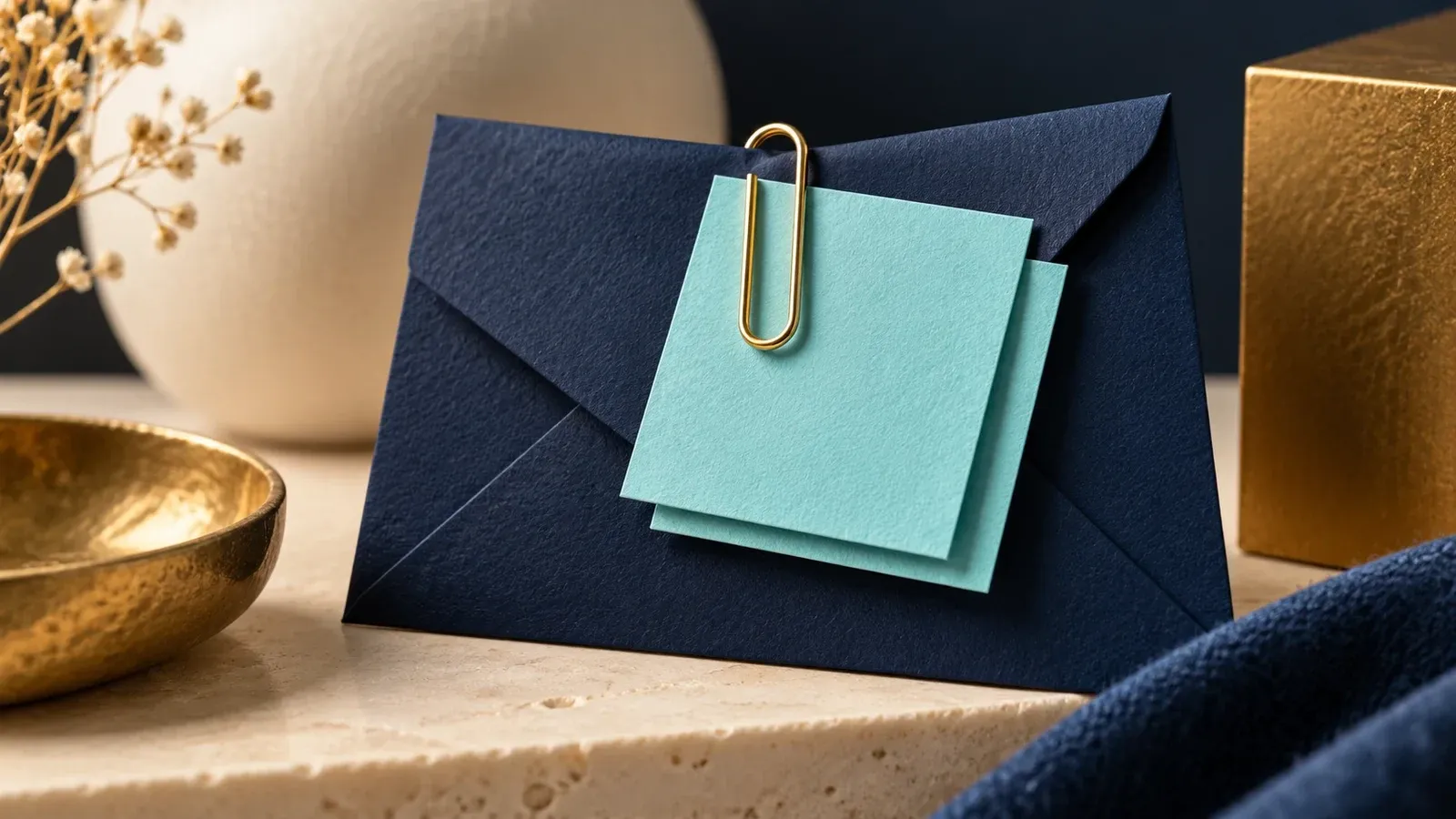
It's possible that file has the right name but the wrong draft. Make sure to open the attachment in Proton Mail before sending the real thing.
This Free example web-app uses a fake text file. Stops before sending.
Before you start
You need to have a proton account to use the mail web app. Either Create a Proton Mail Free account (opens in a new tab) or log in with your existing account. You want a tiny harmless practice file ready to go. This one doesn't send, it just stops.
1. Create a practice draft
- Go to Proton Mail (opens in a new tab)
- Select New message
- Add a subject: Practice attachment check
- No recipient, practice purposes
- Add small file with a precise name: practice-plan.txt with some harmless content like: Fictional practice plan. Status: first draft.
2. Attach the exact file
- Hit paperclip Attachments button.
- Select practice-plan.txt from file picker.
- Wait for it to upload. If just a number of files shows up, expand attachment info.
Watch out
Check the actual file. Just name is not enough. Proton has a 25 MB max total attachment size. Email encoding takes space. Keep a little buffer. Size limit of service that will receive email can be even smaller. Sending attachment does not mean it will be delivered.
If your file is too large for attachment, see how to share a Proton Drive file without recipient signup. Do you have sufficient Drive space? The guide has a public, password-less link, so anyone with the link can download the file. After you revoke the link, there's no way to wipe downloaded copies.
3. Read the attached copy
- Select on the name of the attachment to preview it.
- Notice the beginning of the text and the version. In this case: first draft
- Exit preview. If the file is not correct. Hover the tile and select Remove. Add the new file as an attachment.
- Close and open saved practice draft. See if the attachment is still there.
Before sending a real message
Double check recipient and subject + attachment. Only send if you really want to send it. It's not sent if it's just saved. No claim of delivering in this example.
If it's not possible to preview the type of file, you can download the attached version and preview it with the corresponding app.
For this task, create a Mail account if you don't have one (create Proton Mail Free account (opens in a new tab)) and train on the above innocent text file. Don't set any recipient until you want to send a message.
Sources: Attachment controls and limits (opens in a new tab); Attachment previews (opens in a new tab); Large-file sharing (opens in a new tab).
Share this post
From holdmytwist.com/blog/check-email-attachment-before-send/
Related posts
Set up folders and labels in Proton Mail Free
The Proton Mail Free exercise actually sets up a folder and a separate label. It does talk about the 3 of each, and the difference between moving an email and applying a tag to it.
Restore a deleted file from Proton Drive Trash
How to recover from Proton Drive Trash, check the original folder and content, and avoid confusion with version history. Don't mix up delete and version history.
Restore a deleted item in Proton Pass Free
Restore an item in Proton Pass Trash, view the restored information, and understand why editing isn't reversed when restoring a deleted item.