 HoldMyTwist
New Firefox design: adjust tabs, toolbar and New Tab
Use the appropriate control in FF157+ to make tabs and toolbars more compact. Change theme or New Tab wallpaper. Pin and arrange desired shortcuts.
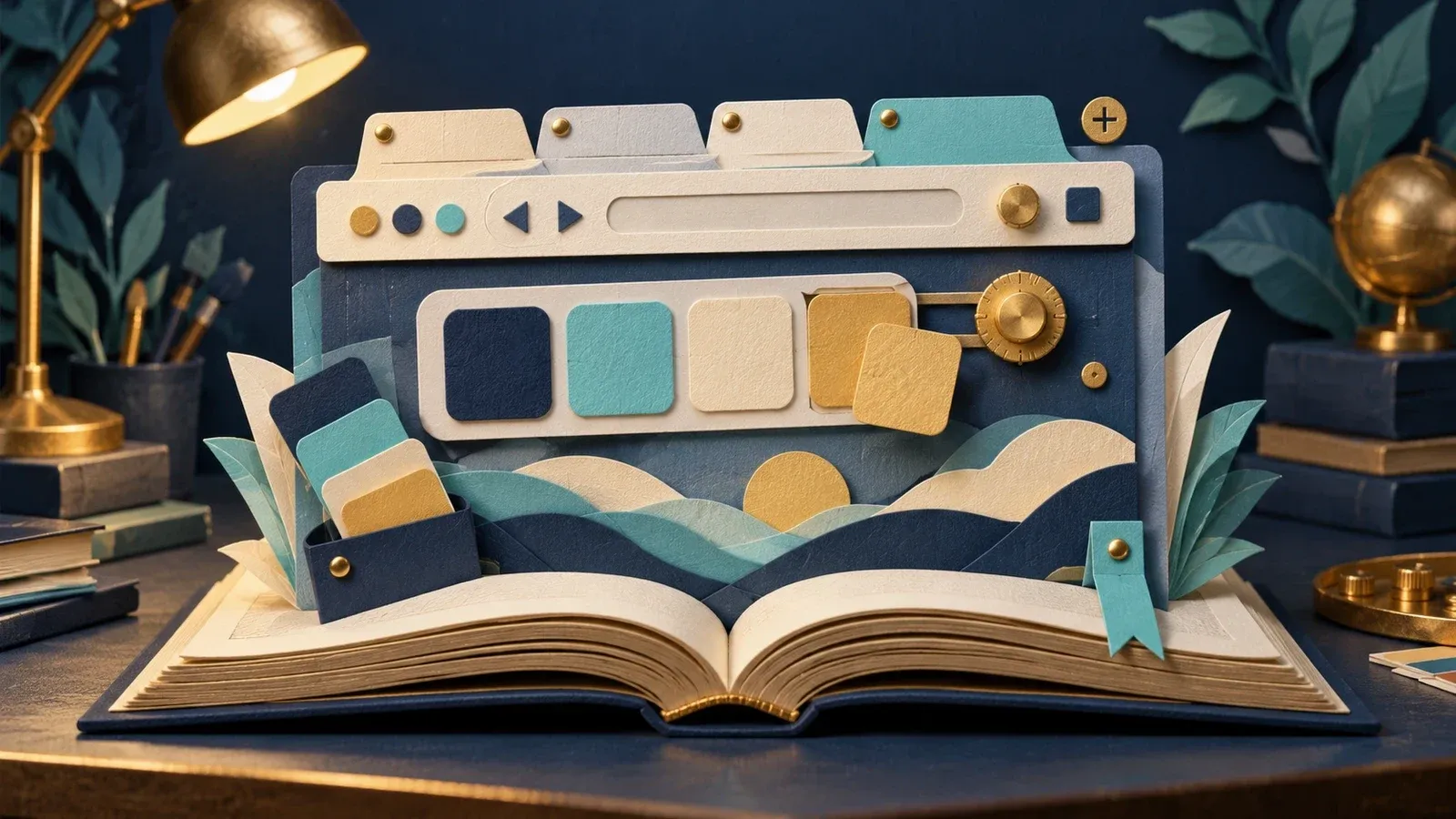
This desktop guide refers to Firefox docs for Firefox 157 and above. Toolbar spacing, browser colors and New Tab are all separate settings in Firefox.
1. Check your Firefox version
For Windows or Linux, click on the Firefox menu and select Help > About Firefox. For Mac, click on the Firefox menu in the menu bar of the Mac system menu and select Firefox > About Firefox. Ensure you're on Firefox version 157 or later. (If you're using Firefox installed by Mozilla, About Firefox will also check and download updates if there are any.) Be sure to save any work you're doing before you click Restart to update Firefox. If you're using the Microsoft Store version, you can update via the Store. If you're using the Firefox that's a part of your Linux distribution, you can update using the package manager.
2. Give webpages more room
1. Go to Firefox Menu Button (3 horizontal lines) > Settings
2. Go to left-hand side > Appearance
3. Set Window density to Compact
Your tabs and toolbars will take up less space. After you're done, just exit Settings, it saves automatically. If it still seems too crowded, go to same place again and try different density.
Source: Mozilla (opens in a new tab).
Quick takeaway
Before you search for any controls - check your Firefox version. Try to use Compact for minimizing the toolbar. Theme for browser colours. Wallpaper for the background of the New Tab. If you can't find some control, check the help for the installed version.
3. Choose a built-in theme
Open New Tab > lower-right corner > Customize. Appearance > select a built-in theme to change browser colors. Wallpapers > select an image to change New Tab background.
4. Keep useful shortcuts in place
If you see a blank "Add Shortcut" tile in New Tab, click on it. Then type in the title of the site and the URL and hit Add.
If you don't see a blank tile, then mouse over a tile that you want to replace. Then click Edit from the three-dot menu. Type in the title of the site and the URL. Click Save.
If you want to keep the shortcut, then mouse over the shortcut. Then click Pin from the three-dot menu.
If you want to move it, then click and hold on the tile. Then drag it to a new location.
5. Reduce New Tab clutter
For New Tab click the bottom right Customize gear or pencil. Disable what you don't want. You can click Manage more settings for more stuff, like sponsored shortcuts (if you have it) or stories (if you have it). Open another new tab to see what it looks like. Not everything is available in every region/language/Firefox.
If a control is missing
If you can't locate Compact, check your Firefox version. If you're using Firefox 157 or later, go to Settings and then Appearance and finally Window density. The older instructions involving about:config are a different, not-supported path.
To change to a different one that you have installed, go to the menu and click on Extensions and Themes, then Themes. Click on Enable for the one you want to use.
For unpinning a shortcut, open the three-dot menu and click Unpin.
Sources: Firefox 157 release notes (opens in a new tab), 157.0.1 fixes (opens in a new tab), updates (opens in a new tab), Compact Mode (opens in a new tab), themes (opens in a new tab) and New Tab settings (opens in a new tab).
Firefox is a trademark of the Mozilla Foundation in the US and other countries. HoldMyTwist is independent of Mozilla.
Share this post
From holdmytwist.com/blog/new-firefox-design-settings/
Related posts
10 free software alternatives for everyday computer jobs

10 tools which you may use for different purposes for free. Take a look at practical tests for photo/drawing/video files before you're switching from paid.
10 Google Sheets formulas beginners can copy
Learn SUM, AVERAGE, COUNTIF, IF and 6 more Sheets formulas on a fictional stock list. With expected results. And checks for typical errors.
10 Chrome shortcuts for beginners
This guide introduces beginners to the ten keyboard shortcuts for desktop Chrome. It lists the keys to press for each action in Windows/Linux and Mac. Find the text on page, change or reset zoom, save bookmarks, handle tabs, work with the address bar, print options, view download history.