 HoldMyTwist
Calculate whole packs in Make with ceil
A Make Free example explains ceil gets you enough whole packs when round and floor get you too few.
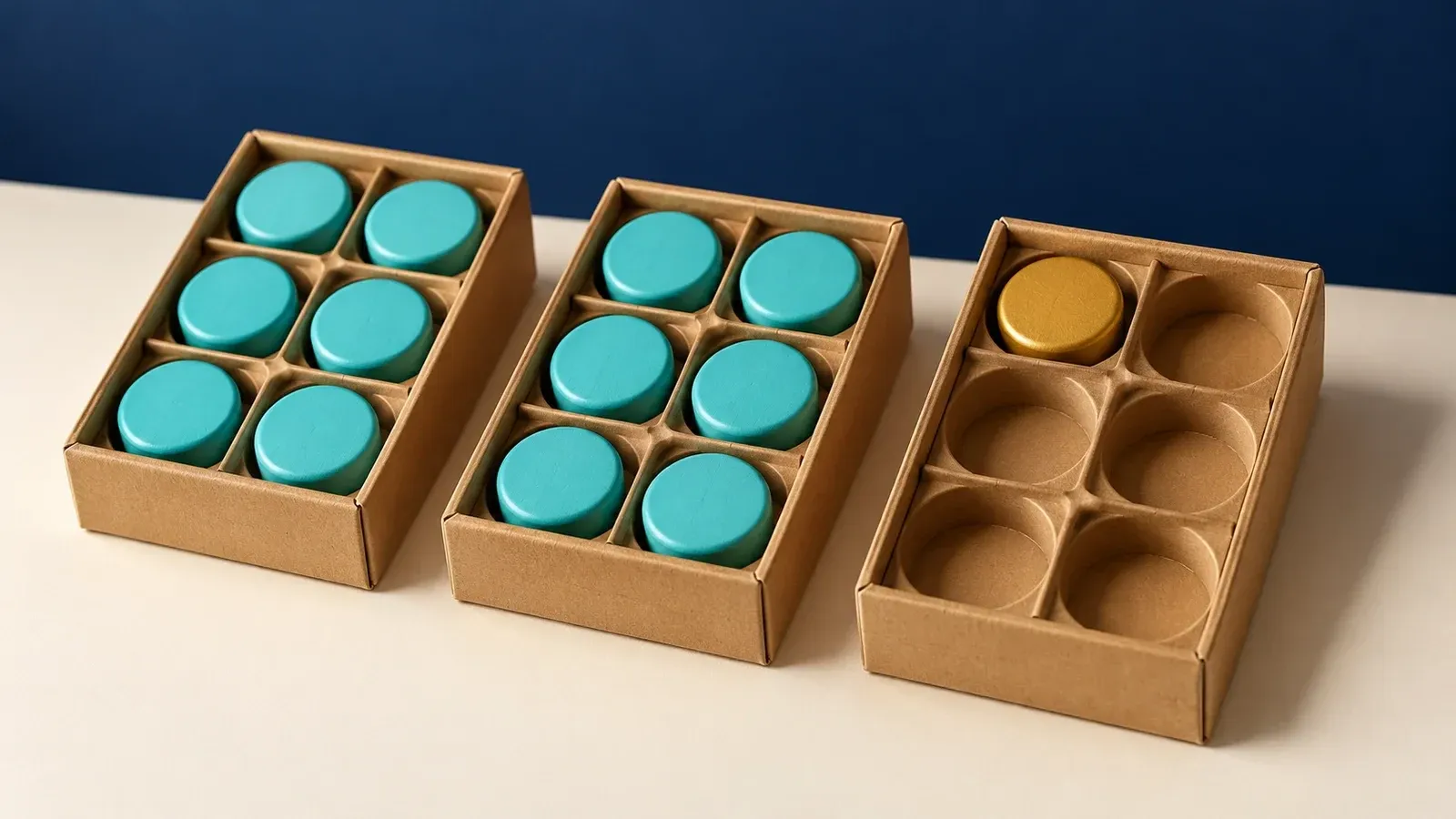
If you have items that needs to be packed in full packs, rounding to the nearest integer can result in not having enough. Make's ceil function (opens in a new tab) will round up if you have a fractional pack count after division. It doesn't change the whole pack count. I'm using 13 fictional items and packs of six. This was tested in Make Free using the built in Tools modules. No app integration. No order. For one calculation, just use a calculator. It's helpful if the quantities already go through a Make workflow that is repeating.
Before you start
You can actually run this right from your browser using your current Make Free account. Start with 13 items in total. Pack size 6 items per pack. To deal with these 13 items, you need 3 packs. One pack of 6, second pack of 6, third pack you have only one item left. No external app is required. You can use any existing account on Make or you can create Make account (opens in a new tab). Before you throw it into any more complex scenario, make sure you don't run out of Free plan (opens in a new tab) limits.
1. Enter the quantity and pack size
- Open new scenario - empty. Call it Whole packs practice. Set its switch to Inactive.
- Press big plus, Tools and then Set variables.
- Set Variable name first to items_needed. Variable value first to 13.
- Add variable - then set name of the second one to pack_size and its value to 6. Press Save of the module.
The number of items should be a non-negative whole number. The pack size should be a positive whole number. You cannot use 0 as a pack size to divide.
These are temporary data for current run of the scenario (see Make's scenario variable guide (opens in a new tab)).
The full view of the editor. To see it click Enlarge image under screenshot and then Open full-size image.
2. Calculate the number of whole packs
Add a plus on the right side of the first module. This will add a second Tools > Set variables module. The first variable in this new module will be packs_needed. Open the value of packs_needed. In the mapping panel, locate the Tools module containing your inputs. Add the items_needed and pack_size tokens of this module to the formula below. Use the tokens that appear in the panel for your scenario.
{{ceil(1.items_needed / 1.pack_size)}}
Division can return a fractional number of packs. ceil the quotient to get an integer number of packs. Capacity = number of packs * items per pack. If you have 6 items per pack and 3 packs, then you have 18 spaces.
In the same module, create two extra variables to be used for the comparison in our output screenshot (add 'em below the ones you've already got). Use "nearest_integer" and "rounded_down" for the names, and use these values respectively:
{{round(1.items_needed / 1.pack_size)}}
{{floor(1.items_needed / 1.pack_size)}}
In Make's function guide (opens in a new tab) it shows you how to add functions and mapped values via the mapping panel. After clicking on the Save button in the module, press Save on the scenario toolbar.
Watch out
Check that there is enough room for all items by multiplying the number of packs by the size of the pack. Three packs of six can hold eighteen, so it'll be enough to hold all thirteen in this case. If you have 13 items, round and floor will both give you two packs of six that can only contain 12 items.
3. Run it and check the output
- click 'Run once'. Wait until both modules have successfully completed.
- Click on the small result bubble for the second module.
- In Output, make sure that 'packs_needed' = 3 make sure both comparison values = 2 (in the Output field, under 'Output')
Make's round and floor functions (opens in a new tab). In Make, "round" takes the nearest integer, which may be greater or lesser than the quotient. "Floor" takes the largest integer not exceeding the quotient. If you're rounding your quotient down, you may not have enough room for everything in your packs.
4. Check an exact multiple and zero
- Edit first module so items_needed is 12. Save module and then press Run once again.
- Look at result bubble for second module and you should have all 3 outputs at 2. (note that ceil keeps the exact result for whole pack)
- Edit first module to set items_needed to 0 and save it. Then press Run once again and look at the result of second module. All 3 outputs should be 0 (no packs needed for this calculation)
- Set 13 again if you want to keep this as example. Save scenario but keep it Inactive.
Every manual run does a calc on the current inputs. It doesn't hold back any stock or make an order.
Make sure both the fields have data before you do the calculation. The number of items should be an integer >= 0. The pack size should be an integer >=1. If the fields are empty or the validation check fails, do not continue until you fix them. If you want to make sure the bad data is being blocked later on, take a look at Make some filters for a beginner, a separate walkthrough for that.
If the result is wrong
If you're seeing formula in text in Make, open the value field and verify that you've added the function and mapped the inputs via mapping panel. If your pack count is off, look at the first module input values for that run. If your module numbers are different than mine, just select the mapping tokens from your input module.
You want to keep the original quantity together with pack count that's been calculated. 3 packs isn't necessarily 3 things. This simple calculation doesn't take into account supplier minimums, mixed pack sizes or available stock.
To test with (fictitious) stock numbers, start with Make Free (opens in a new tab). After the exact-multiple or zero-item runs, make the practice scenario Inactive. (It just calculates a quantity and doesn't put out any orders.)
Sources: Make math functions (opens in a new tab), using functions (opens in a new tab), scenario variables (opens in a new tab).
Share this post
From holdmytwist.com/blog/make-ceil-whole-packs/
Related posts
Make Numeric aggregator: sum quantities by category
Compare raw and cleaned category labels. Then sum up the quantity from a single grouped array. Also get a total count of rows.
Clean messy text in Make with trim and lower
Trim off any extra spaces before/after a label and normalize the capitalization in Make Free. Set up a two-module practice workflow. Examine the results. What does not change with trim?
Is Make Free enough for your workflow?

Before you even get your flow, understand the limits of Make Free. Plan your monthly credits. What do you want to track?