 HoldMyTwist
Calculate whole packs in Make with ceil
Calculate enough whole packs in Make with ceil. Follow a Free-plan example, compare round and floor, and check exact multiples and zero before using the result.
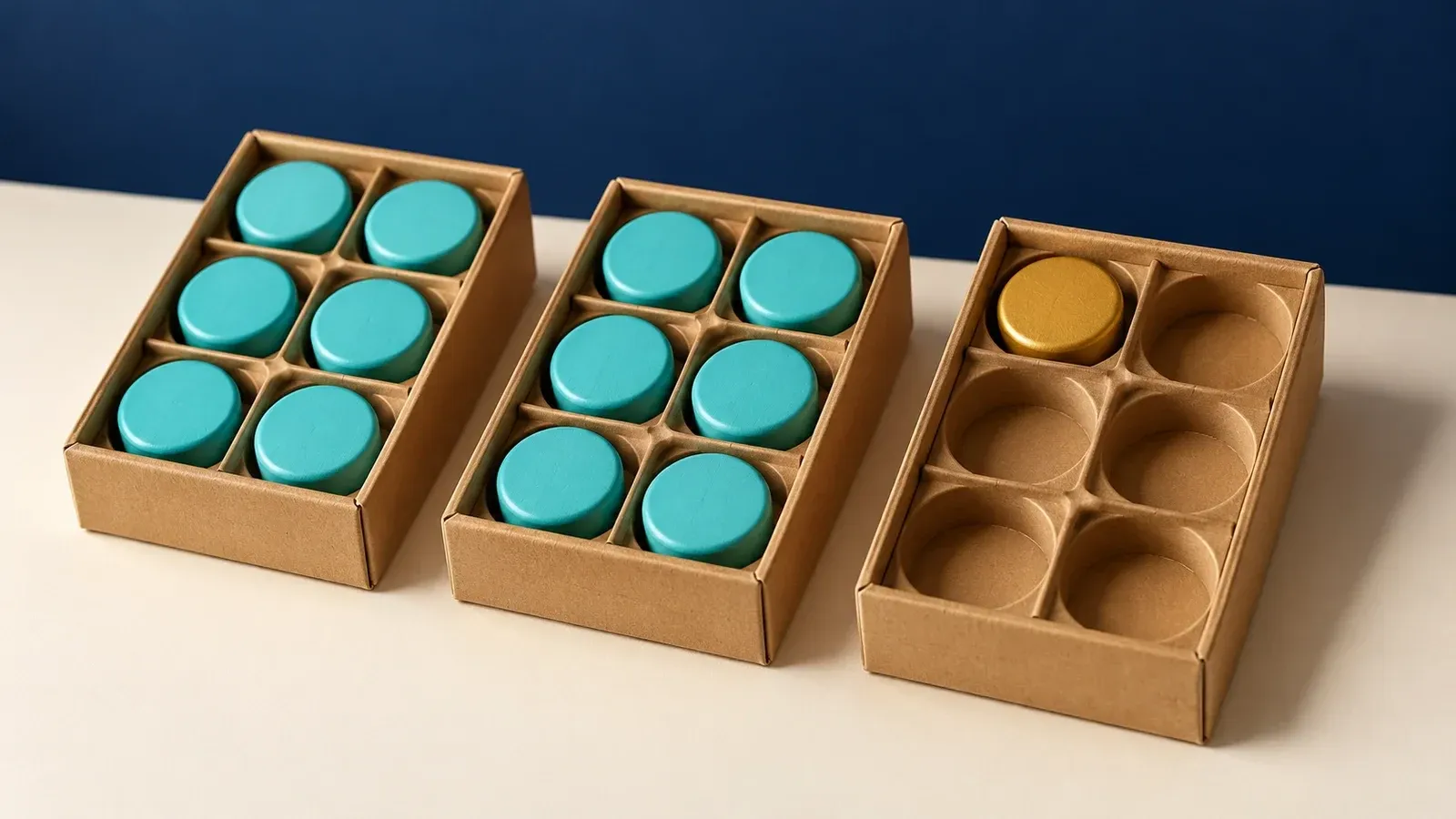
When items must fit into whole packs, rounding to the nearest integer can leave you short. Make's ceil function (opens in a new tab) rounds the pack count up whenever there is a remainder.
This example uses 13 fictional items and packs of six. We ran it in Make Free with built-in Tools modules, without connecting an app or sending an order. If you only need one calculation, a calculator is simpler. This is useful when quantities already pass through a repeated Make workflow.
Before you start
You need a Make Free account and a browser. You will calculate three packs for 13 items, then check an exact multiple and zero. No external app connection is needed. Use an existing Make account, or create a Make account (opens in a new tab). Check the current Free plan limits (opens in a new tab) before building a larger workflow.
1. Enter the quantity and pack size
- Create a blank scenario and name it Whole packs practice. Keep its switch Inactive.
- Click the large plus, choose Tools, then Set variables.
- Set the first Variable name to items_needed and its Variable value to 13.
- Click Add variable. Name the second variable pack_size and set its value to 6. Click the module's Save.
Use nonnegative whole numbers for the item quantity and a positive whole number for the pack size. A pack size of zero cannot be used as a divisor. These variables are temporary data for this scenario run, as described in Make's scenario-variable guide (opens in a new tab).
Choose Enlarge image below a screenshot, then Open full-size image, to read the full editor view.
2. Calculate the number of whole packs
- Click the plus beside the first module and add another Tools > Set variables module.
- Name its first variable packs_needed.
- In Variable value, paste the formula below. It assumes your input module is numbered 1. Check that items_needed and pack_size become the mapped tokens from that module.
{{ceil(1.items_needed / 1.pack_size)}}
Division calculates the unrounded pack count. The ceil function selects the next whole number when necessary. For 13 divided by 6, the result is three packs. They provide capacity for 18 items.
For the comparison shown in our output screenshot, add two more variables in the same module. Name them nearest_integer and rounded_down, using these values respectively:
{{round(1.items_needed / 1.pack_size)}}
{{floor(1.items_needed / 1.pack_size)}}
Make's function guide (opens in a new tab) explains how to insert functions and mapped values through the mapping panel. Click the module's Save, then the scenario toolbar's Save.
Watch out
Use ceil when every item needs a place in a whole pack. For 13 items, round and floor both return two packs, which hold only 12. Check the pack count against the original quantity before using it in a later order or fulfilment step.
3. Run it and check the output
- Click Run once. Wait for both modules to finish successfully.
- Click the small result bubble above the second module.
- Under Output, check that packs_needed is 3. The comparison values should both be 2.
The comparison uses Make's documented round and floor functions (opens in a new tab). Round chooses the nearest integer; floor chooses the integer below or equal to the value. For whole-pack capacity, either can produce too few packs when the division has a remainder.
4. Check an exact multiple and zero
- Open the first module and change items_needed to 12. Save the module and click Run once again.
- Open the second module's result bubble. All three outputs should be 2. Ceil keeps an exact whole-pack result unchanged.
- Repeat with items_needed set to 0. All three outputs should be 0, meaning no packs are needed for this calculation.
- Restore 13 if you want to retain the example. Save the scenario and keep it Inactive.
Each manual run calculates from its current inputs. It does not reserve stock or place an order. When adapting this to real records, check the item's pack size and units, and reject missing, negative or invalid inputs before they reach the calculation.
If the result is wrong
If the output contains formula text, reopen the value field and check that the function and mapped inputs appear as tokens. If it uses the wrong quantity, check the input module's number and inspect that run's input values. A different module number requires different mapping tokens.
Keep the original quantity alongside the calculated pack count. A result of three packs does not mean three items, and this simple calculation does not account for supplier minimums, mixed pack sizes or available stock.
To compare ceil, round and floor with the fictional quantities above, start with Make Free (opens in a new tab). Check the exact-pack and zero cases, then keep the practice inactive. This calculation does not place an order.
Sources: Make math functions (opens in a new tab), using functions (opens in a new tab), scenario variables (opens in a new tab).
Share this guide
From holdmytwist.com/guides/make-ceil-whole-packs/
Related guides

Make Numeric aggregator: sum quantities by category
Group order quantities into category totals in Make. Use SUM, fix inconsistent names with trim and lower, and check the result on the Free plan.

Clean messy text in Make with trim and lower
Remove spaces at the edges of a label and standardise its capitalisation in Make Free. Build a two-module practice workflow, inspect the result and learn what trim leaves unchanged.
In this guide

Is Make Free enough for your workflow?
Check Make Free's limits, fill in a monthly credit budget, and decide what to measure before you rely on a workflow.