 HoldMyTwist
Episode 1
The Duck Button
The first time the robot presses the red button, the duck quacks. Would the next click make the duck quack or jump?
Episode transcript
Scene 1
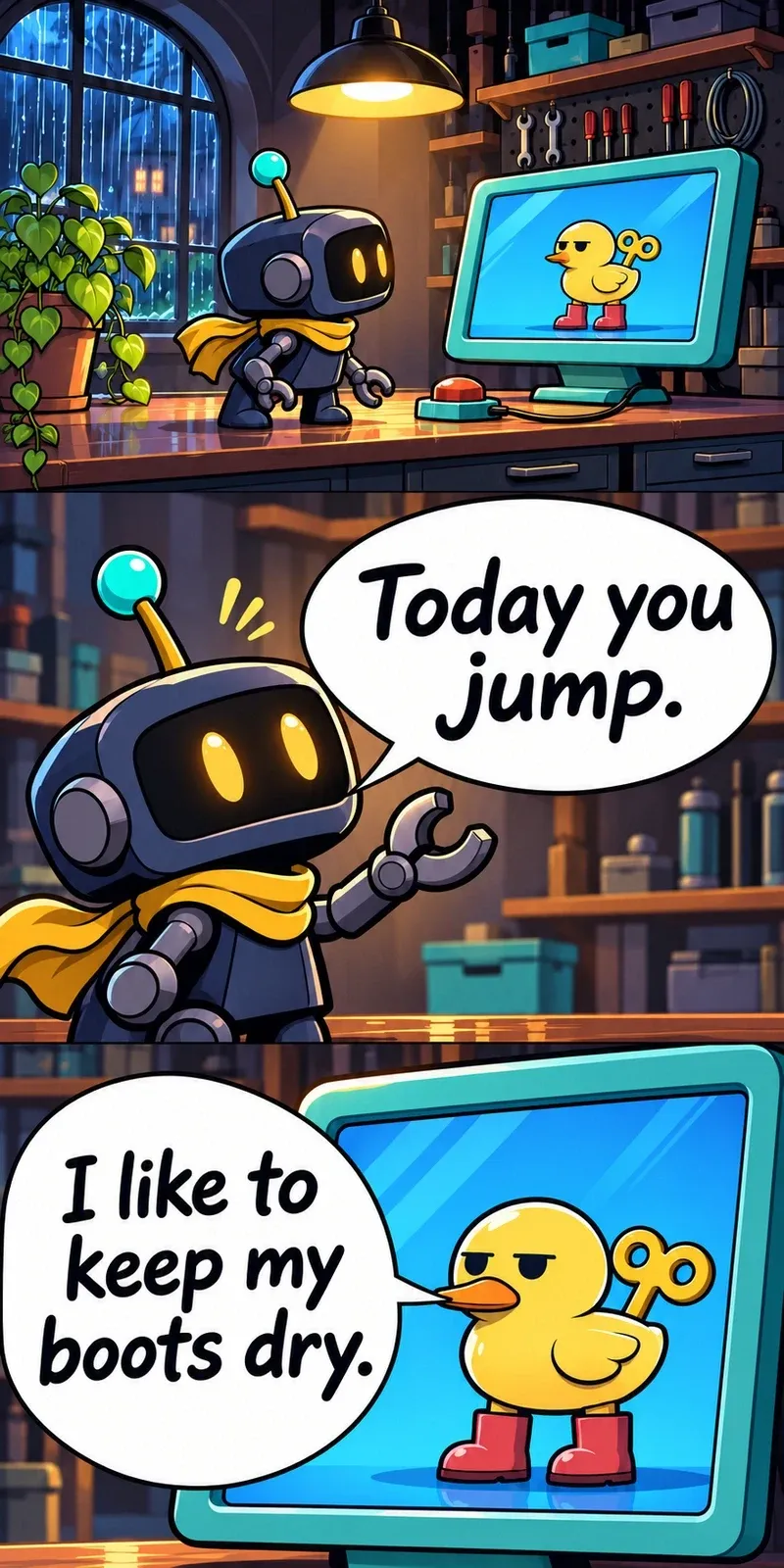
A rainy workshop view introduces the robot and a booted duck inside an aqua monitor.
Robot: Today you jump.
Duck: I like to keep my boots dry.
Scene 2
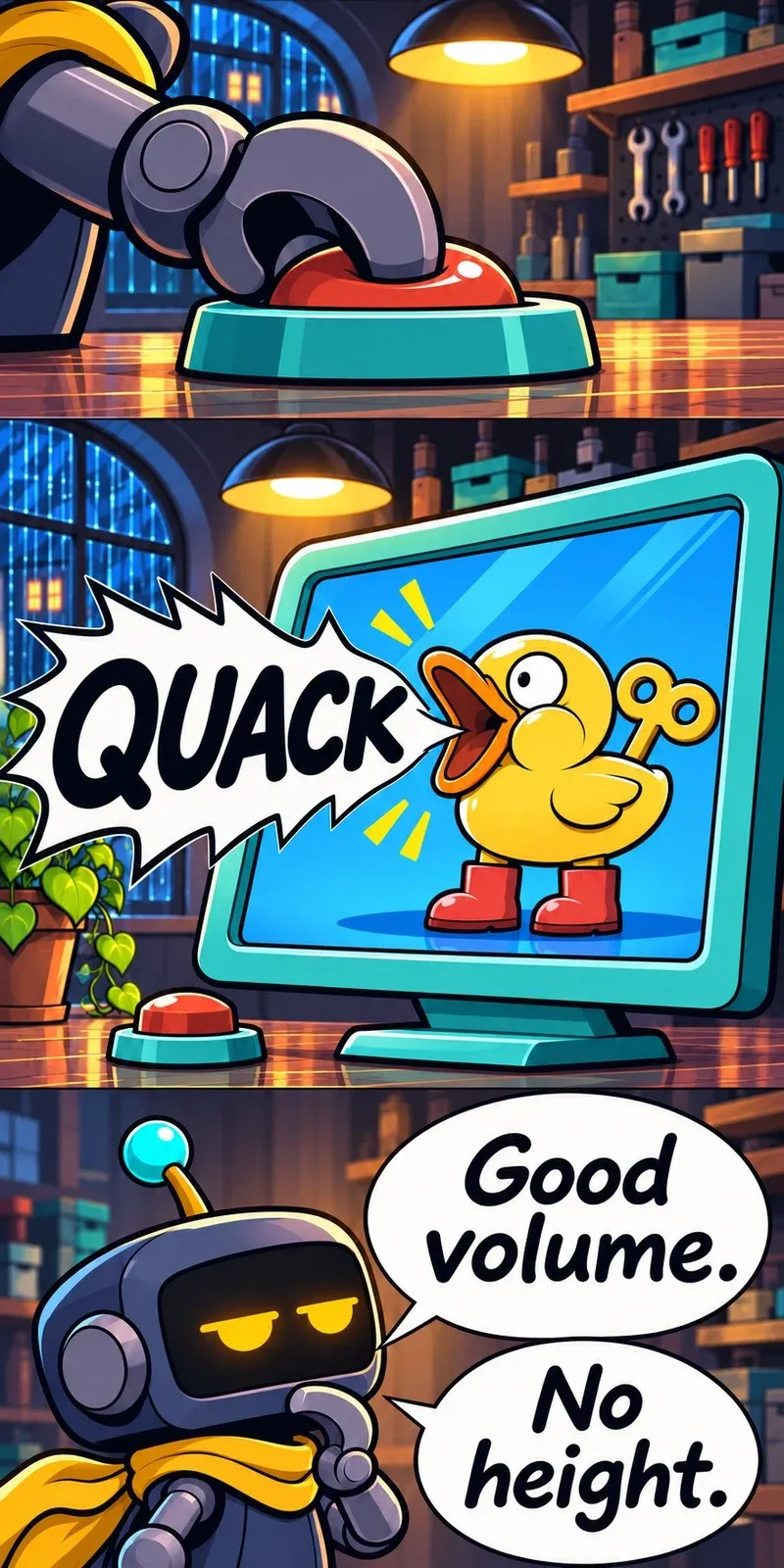
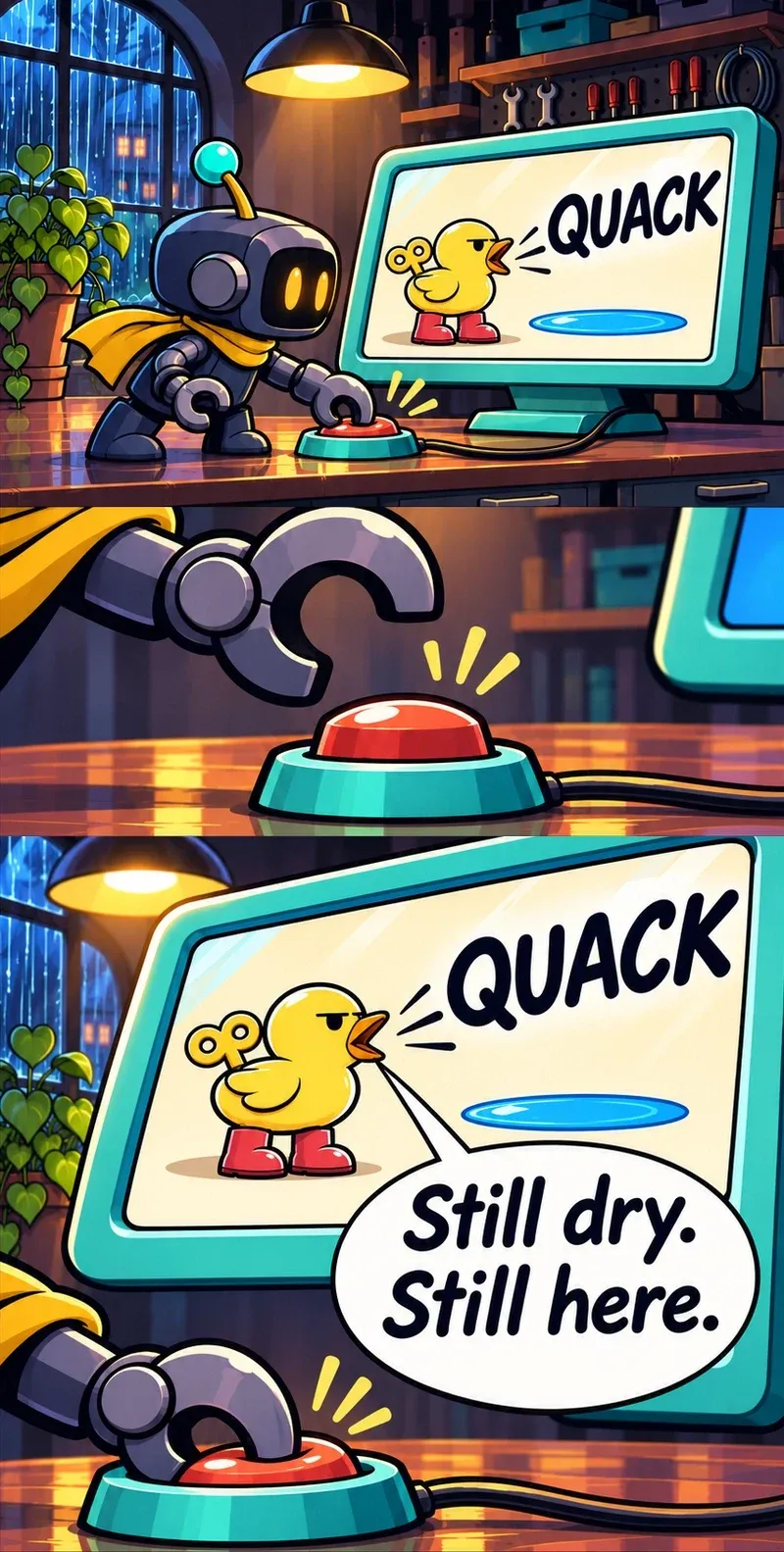
A pincer presses the coral button. The duck quacks inside the monitor with both boots still planted.
Duck sound: QUACK
Robot: Good volume.
Robot: No height.
Scene 3
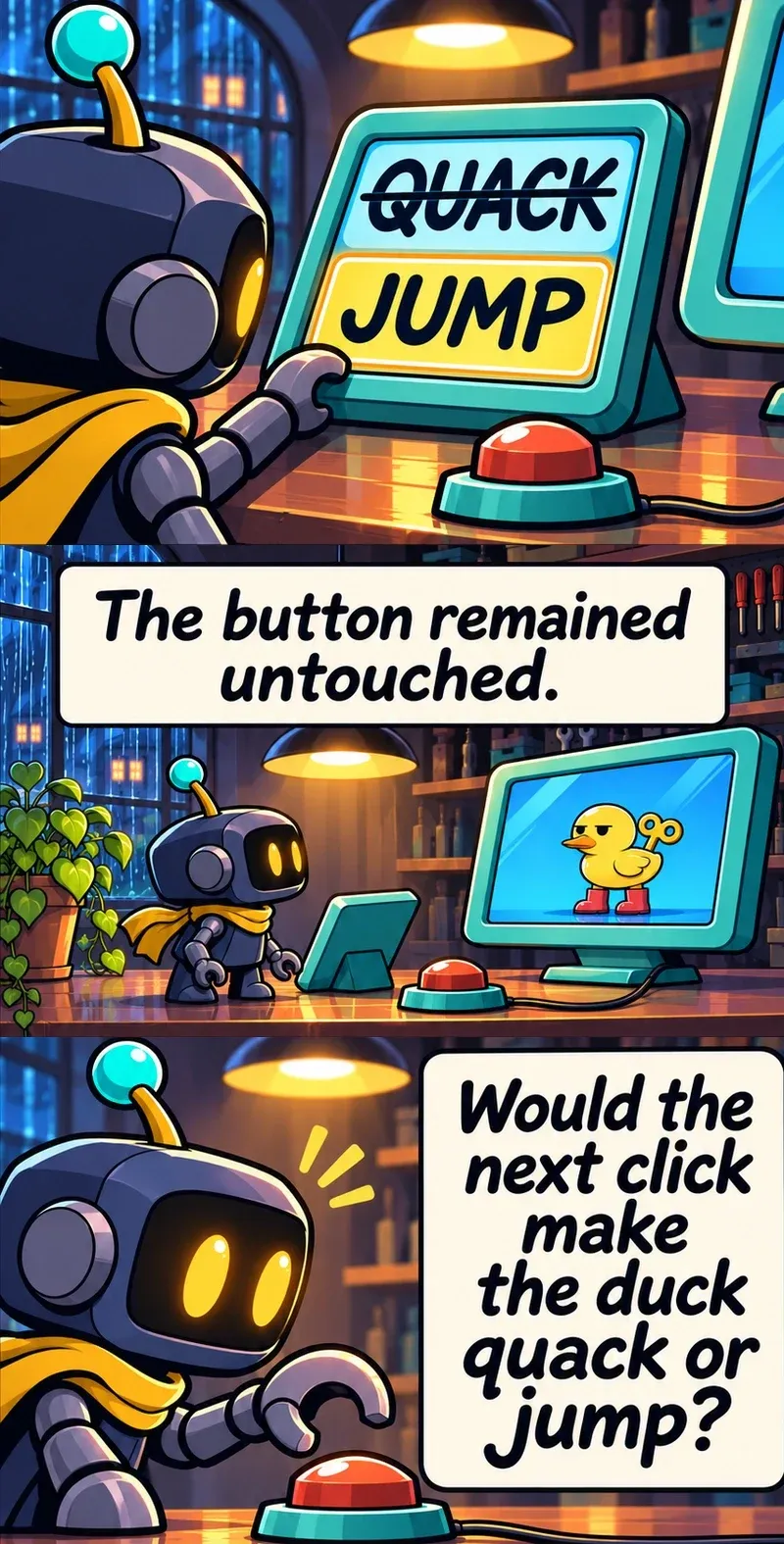
At a separate console the robot replaces QUACK with JUMP. The duck waits with both boots grounded while the coral button stays untouched. The robot then hovers a pincer above the button before the next press.
Console: QUACK
Console: JUMP
Caption: The button remained untouched.
Reader prompt: Would the next click make the duck quack or jump?
Scene 4
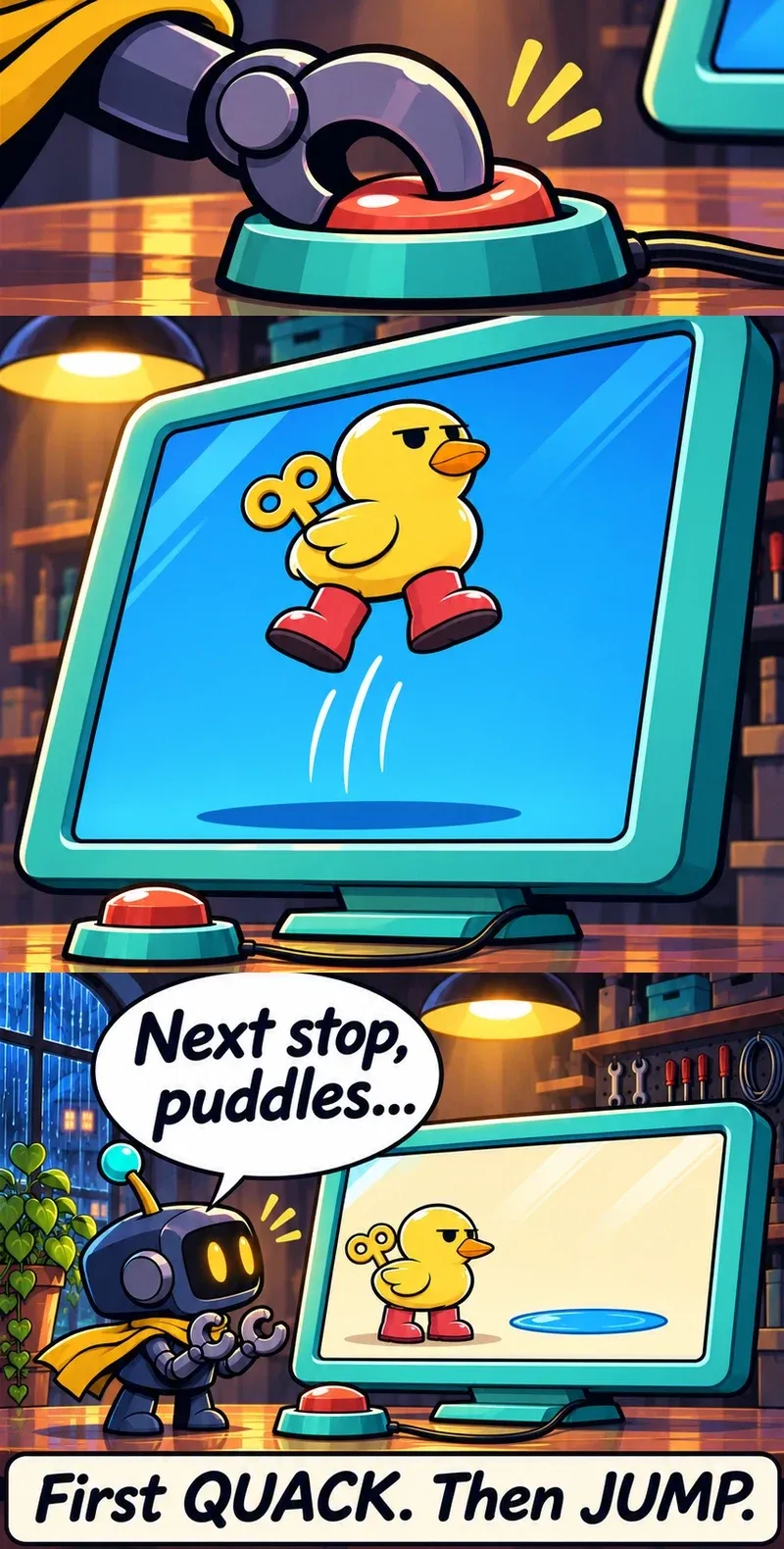
The robot presses the coral button. Both duck boots rise clear of the monitor floor above a separate shadow. After landing, the duck stands on dry ground to the left of a small blue puddle while the robot announces the new goal.
Robot: Next stop, puddles...
Cue order: First QUACK. Then JUMP.
Scene 5
The robot presses the coral button and the duck quacks, with both boots grounded left of the puddle. A close-up shows the pincer lifted and the button released. The next press gets another quack while the duck remains in place.
Duck sound: QUACK
Duck sound: QUACK
Duck: Still dry. Still here.
Scene 6
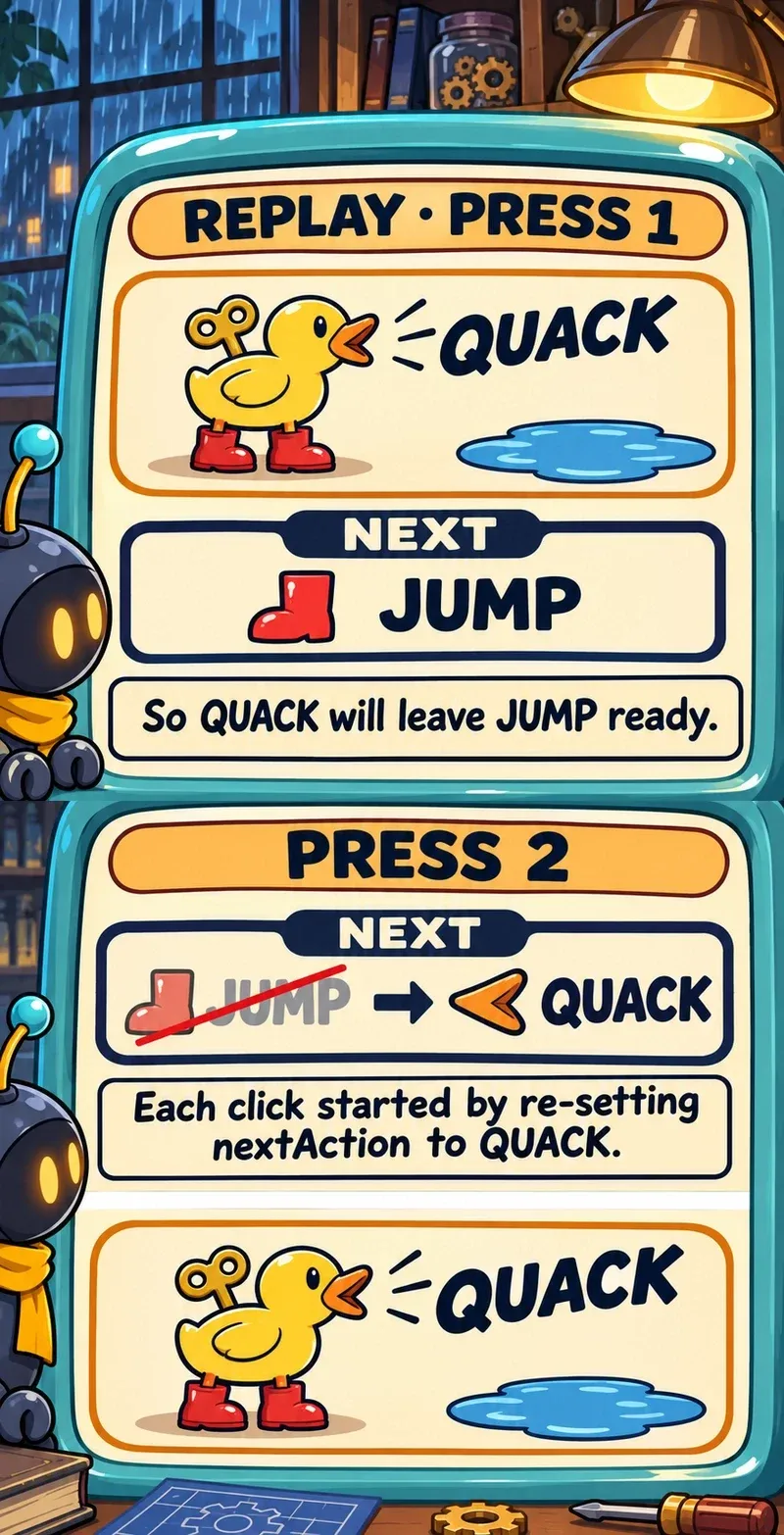
The robot inspects a replay of the two failed presses. After the first quack, NEXT shows a boot and JUMP. At the start of press two, the old JUMP is crossed out and replaced by a beak and QUACK. The duck quacks again, with both red boots still planted on the dry left side of the puddle.
Replay trace: REPLAY · PRESS 1
Duck sound: QUACK
Trace state field: NEXT
Trace next value: JUMP
Caption: So QUACK will leave JUMP ready.
Replay trace: PRESS 2
Trace state field: NEXT
Trace previous value: JUMP
Trace new value: QUACK
Caption: Each click started by re-setting nextAction to QUACK.
Duck sound: QUACK
Scene 7
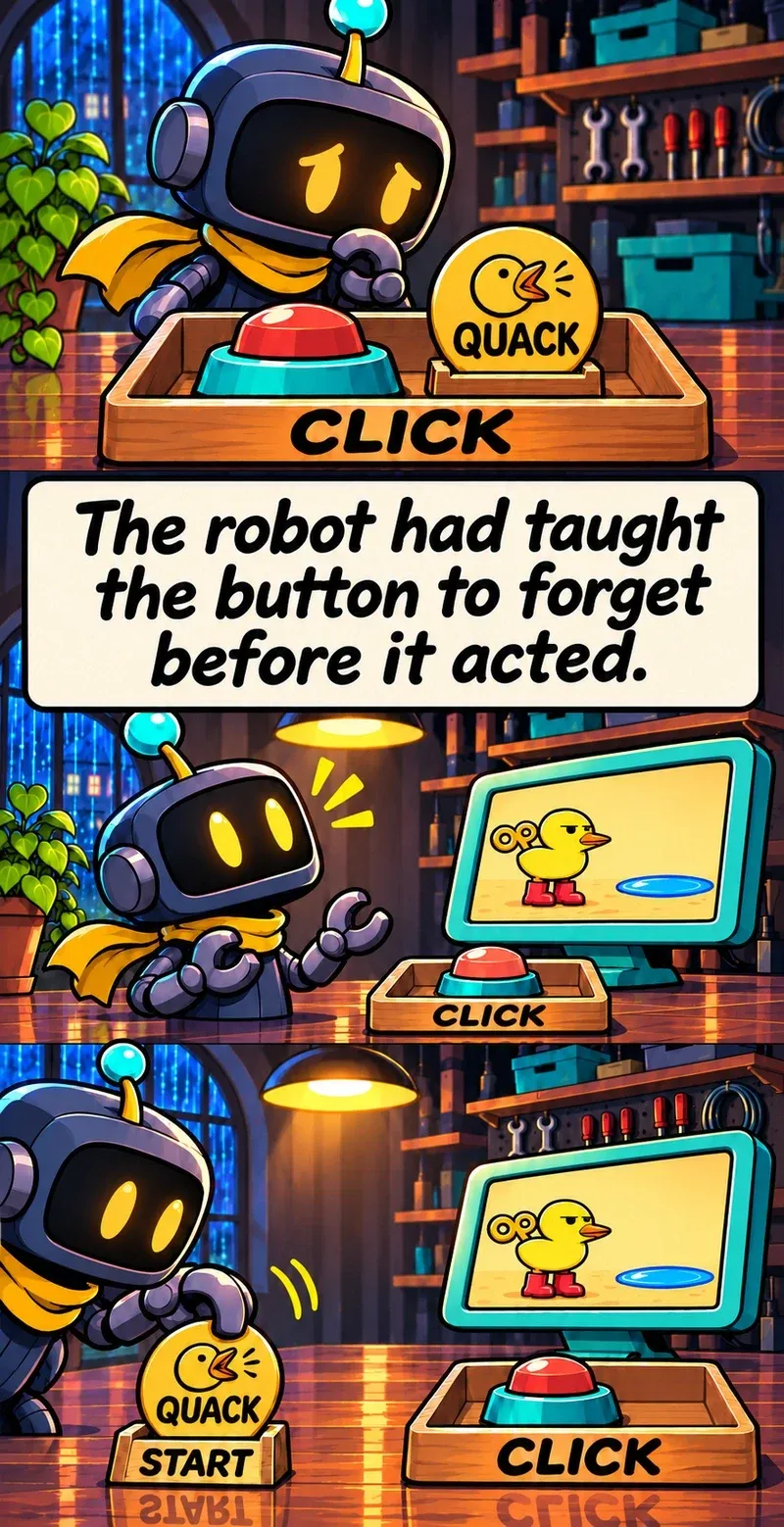
The beak-marked QUACK token starts inside the CLICK tray beside the coral button. The robot realizes the mistake. It moves the single starting cue onto a separate START stand outside the repeated-action tray while the duck waits on dry ground left of the puddle.
Cue token: QUACK
Action tray: CLICK
Caption: The robot had taught the button to forget before it acted.
Action tray: CLICK
Cue token: QUACK
Initialization stand: START
Action tray: CLICK
Scene 8
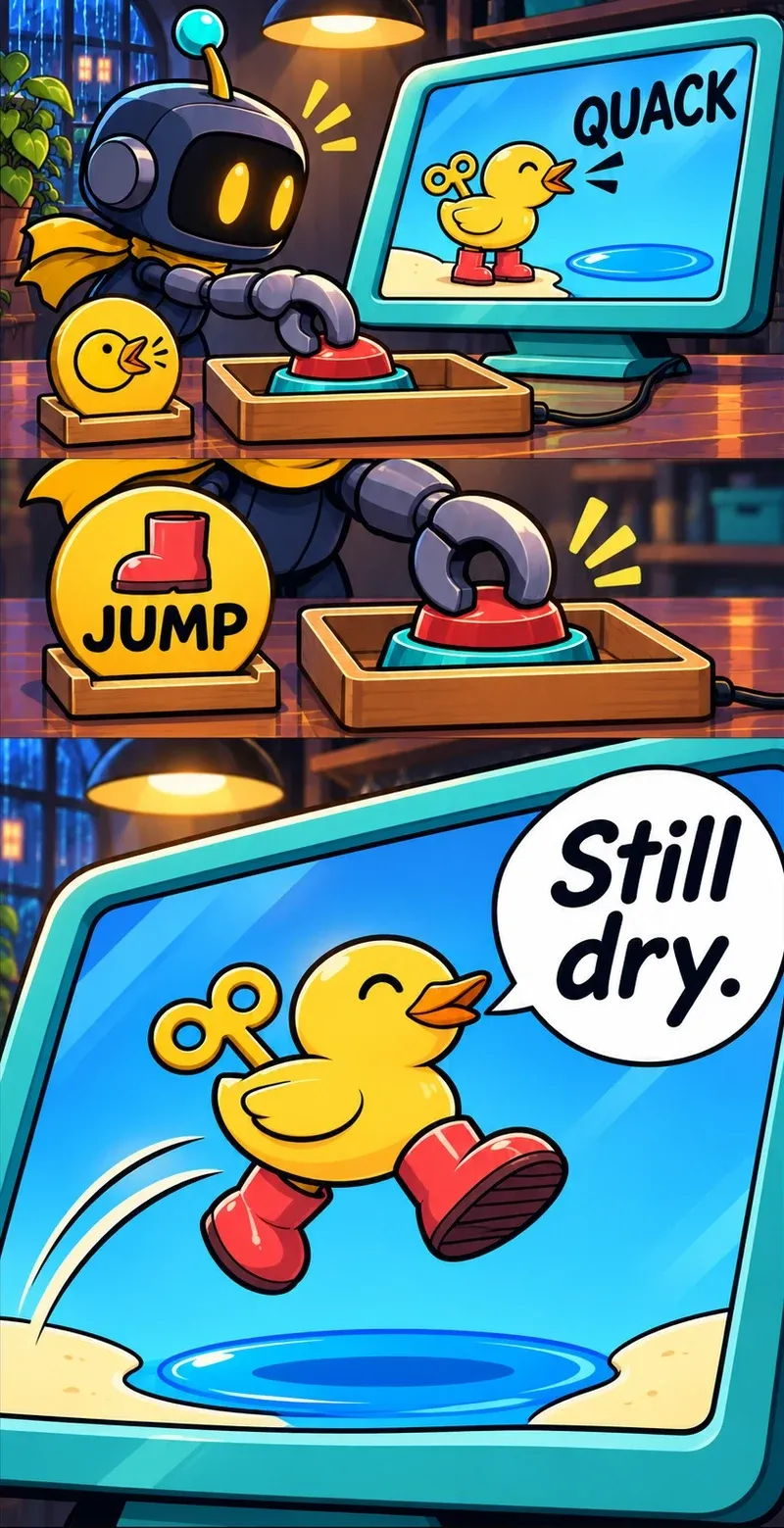
The first press gives a warning quack while the duck stands left of the puddle. The cue token now shows a boot and JUMP as the robot presses the same coral button. In a large final panel the duck leaps rightward over blue water with both boot soles clear and a separate shadow below.
Duck sound: QUACK
Cue token: JUMP
Duck: Still dry.
Try the duck button
How the button works
In the comic the duck quacked and jumped. In this JavaScript example, when you click on or activate the button, the text on the button changes. The browser will invoke the function you have attached to the button's click event. The function is an event handler.
In the broken case, when you click, it creates a new local nextAction, and initializes it to QUACK. The button has a label on it that says QUACK. The handler sets the local nextAction to JUMP before returning. But on the next call, you create a new variable. So you can't refer to the JUMP from the last call. Moving the declaration out of the handler makes it so that all the calls can share the same variable.
At the beginning of a new run (before any clicks), the program only sets nextAction to QUACK one time. Every time you run the handler it'll use the current cue for the action and then change nextAction to the other cue. The code doesn't have a timer so waiting won't clear that nextAction.
Press | Cue used | Next cue |
|---|---|---|
Before the first press | None yet | QUACK |
1 | QUACK | JUMP |
2 | JUMP | QUACK |
3 | QUACK | JUMP |
In this example QUACK and JUMP are the labels for the duck's actions.
Click on the linked MDN Playground (opens in a new tab). Copy the example text and paste it into the JS window. Then click Run. Finally, click the example button four times. Watch the QUACK and JUMP labels. Note there is no sound or animation here.
const button = document.createElement("button");
button.textContent = "Press the duck button";
document.body.append(button);

let nextAction = "QUACK";
button.addEventListener("click", () => {
  button.textContent = nextAction;
  if (nextAction === "QUACK") {
    nextAction = "JUMP";
  } else {
    nextAction = "QUACK";
  }
});
The line below sets the starting value for nextAction.
let nextAction = "QUACK";
To see the error, remove the line from its current position above the click-responding code. Insert the line directly inside the click-responding code. Make it the first line in the code after the opening brace.
Then click Run.
Then, click twice on its button. You will see QUACK for both clicks since for each click, the starting cue is reset. Put the line back above the click code.
Then click Run.
Answer. The next press does show JUMP because the first press left nextAction as JUMP.
Sources
MDN: Introduction to events (opens in a new tab)
MDN: Listening for an event (opens in a new tab)
MDN: How a function remembers its surroundings (opens in a new tab)