 HoldMyTwist
Set up folders and labels in Proton Mail Free
Create a folder and label in Proton Mail Free, understand the three-of-each limit, and choose when to move or tag a message.
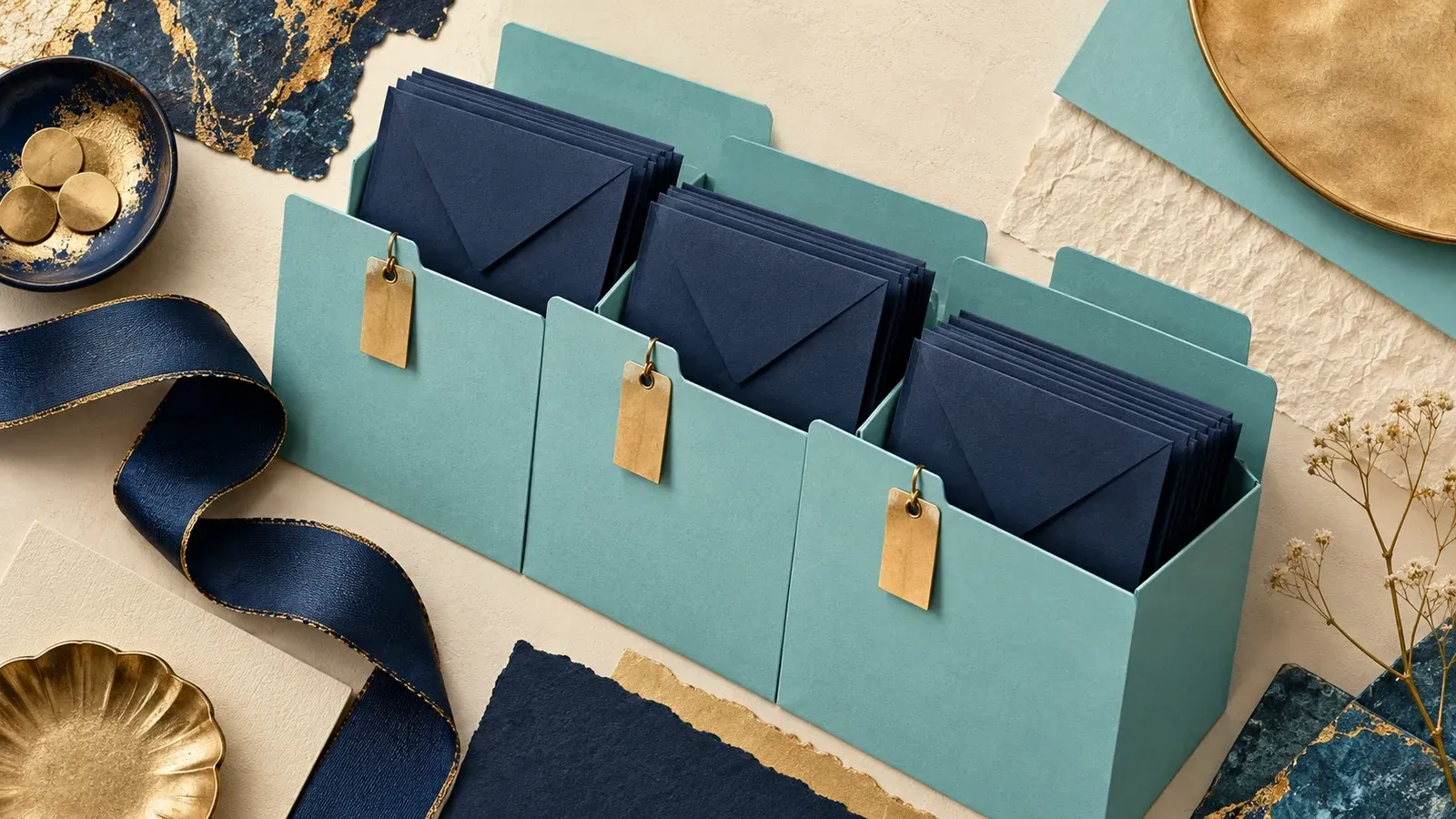
A folder gives a message one main place to live. A label adds a tag without moving it. Proton Free allows up to three custom folders and three labels (opens in a new tab).
This example creates a practice folder and label. Applying them to your own mail follows Proton's documented controls.
Before you start
You need a Proton account for the Mail web app. Create a Proton Mail Free account (opens in a new tab) or sign in with your existing account. You need room for one practice folder and label within your allowance.
1. Create one folder
- Open Proton Mail (opens in a new tab).
- Click the + beside Folders, labelled Create a new folder.
- Enter Practice receipts. Keep No parent folder for a top-level folder.
- Review the notification choice, then click Save.
2. Create a label
- Click the + beside Labels.
- Enter Practice follow-up, choose a color and click Save.
- Expand Folders and Labels. Check that both names appear.
Quick takeaway
Move a message when it belongs in one folder. Add a label when it needs a tag such as follow-up. A label does not move the message out of Inbox, and a message can carry several labels.
3. Apply the system to a message
According to Proton's instructions, select a message, open Move to, select a folder and click Apply. It leaves the original folder. To tag it, use the label control, choose your label and apply it instead.
Start with a harmless message. Reopen the target folder or label to check the result. Leave automatic sender rules off while learning manual steps.
If you cannot create another
Count existing custom folders and labels. Reuse an appropriate name rather than upgrading just for this example. Manage names through Settings, All settings, then Folders and labels.
To try this folder-and-label system, start with Proton Mail Free (opens in a new tab) and one harmless practice message. Use your existing account if you already have one; this exercise does not require an upgrade.
Source: Folders, labels and Free limits (opens in a new tab).
Share this guide
From holdmytwist.com/guides/set-up-mail-folders-labels/
Related guides
Restore a deleted file from Proton Drive Trash
Recover a file from Proton Drive Trash, check its original folder and content, and avoid confusing deletion with version history.
Restore a deleted item in Proton Pass Free
Recover an item from Proton Pass Trash, check the restored details, and see why restoring a deleted item does not undo edits.
Is Proton VPN Free enough? Check these limits
Check Proton VPN Free country choice, device limits and streaming support, then follow the Free signup option through the paid offer screen.